Nakan Fracture Bundle
Cinema 4D's Voronoi Fracture, Explosion and Push Apart, as Geometry Nodes assets that work together.
Fracturing an object is trivial in Cinema 4D with Voronoi Fracture, and I wanted the same in Blender, together with the effectors I usually use with it. Break a mesh into pieces, blow them apart and keep them from overlapping, all in Geometry Nodes. The three assets are made to be chained: fracture first, then explode or push the pieces.
Find them in the Asset Browser under the Fracture catalog.
Download
In Blender: File > Append > Nakan_Fracture_Bundle.blend > NodeTree > pick the node group. Or drop the unzipped folder in an asset library folder to use them from the Asset Browser.
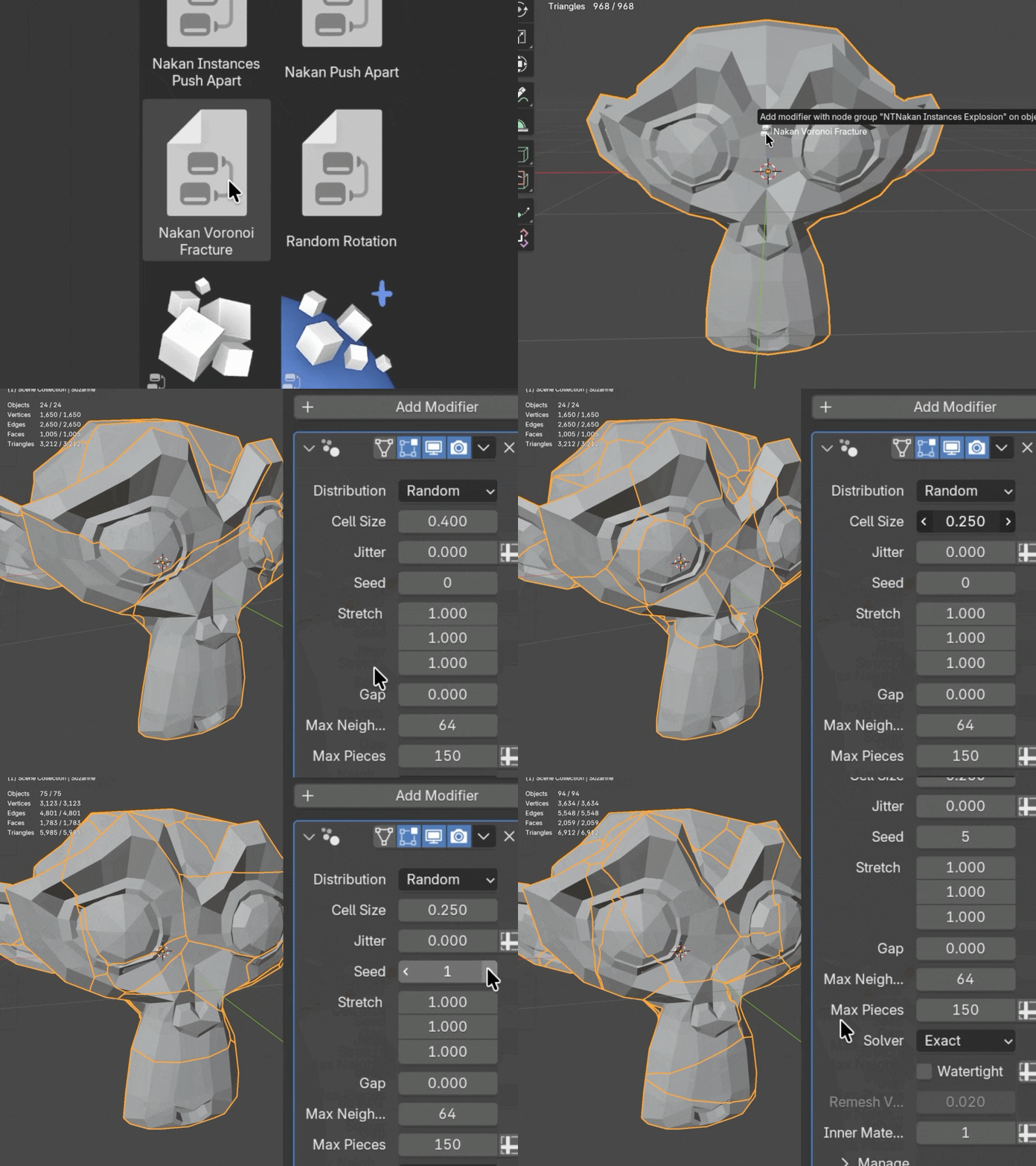
Breaks any mesh into Voronoi pieces. Pick random or grid cells, set their size, stretch them along an axis for shards, and open a gap to show the cracks. Each piece comes out as an instance, ready for the other two nodes.
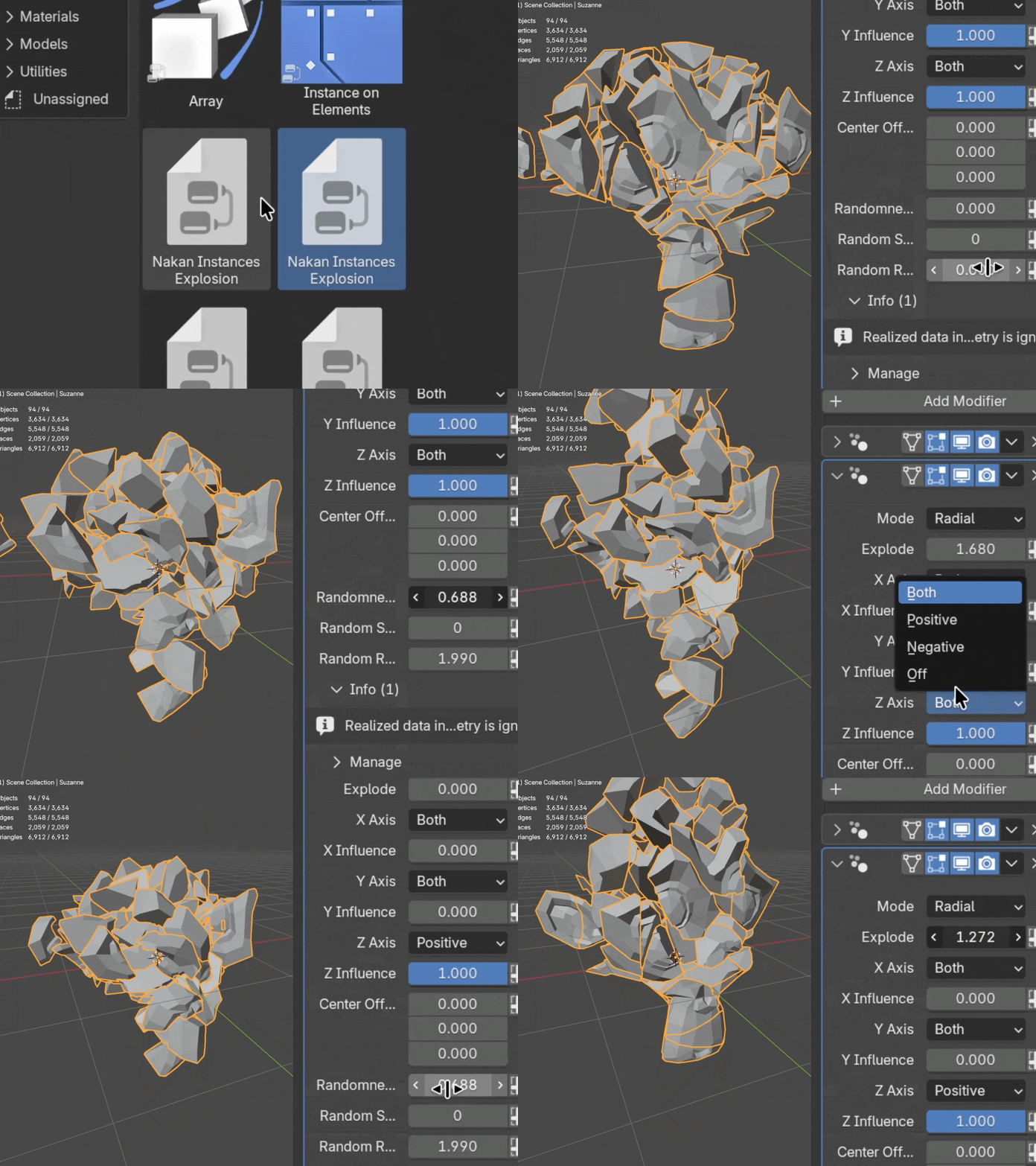
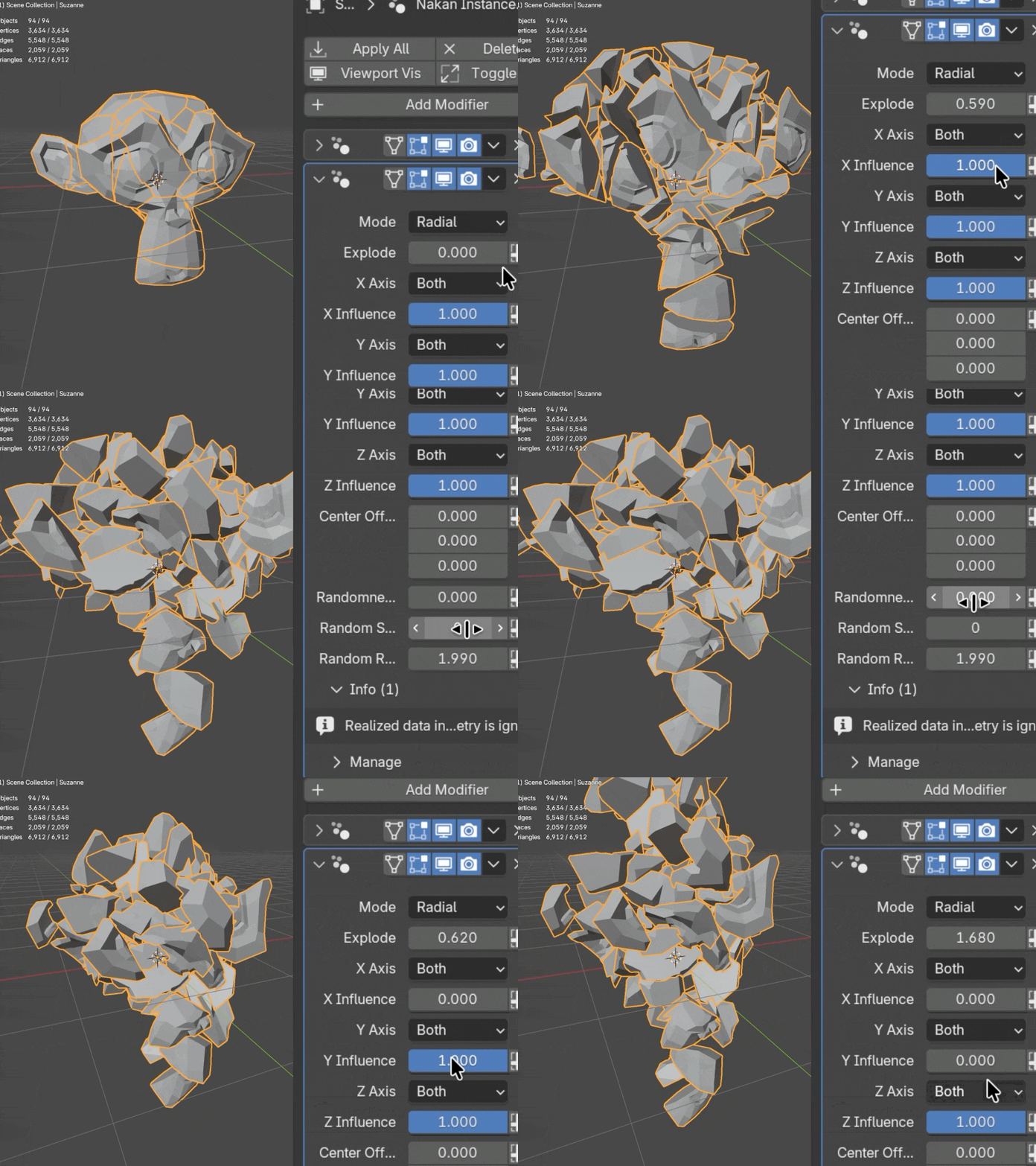
Moves the pieces away from a center, like an explosion. Unlike Push Apart, you control the direction: limit it to one axis or one side, offset the center, and add random rotation and randomness per piece.
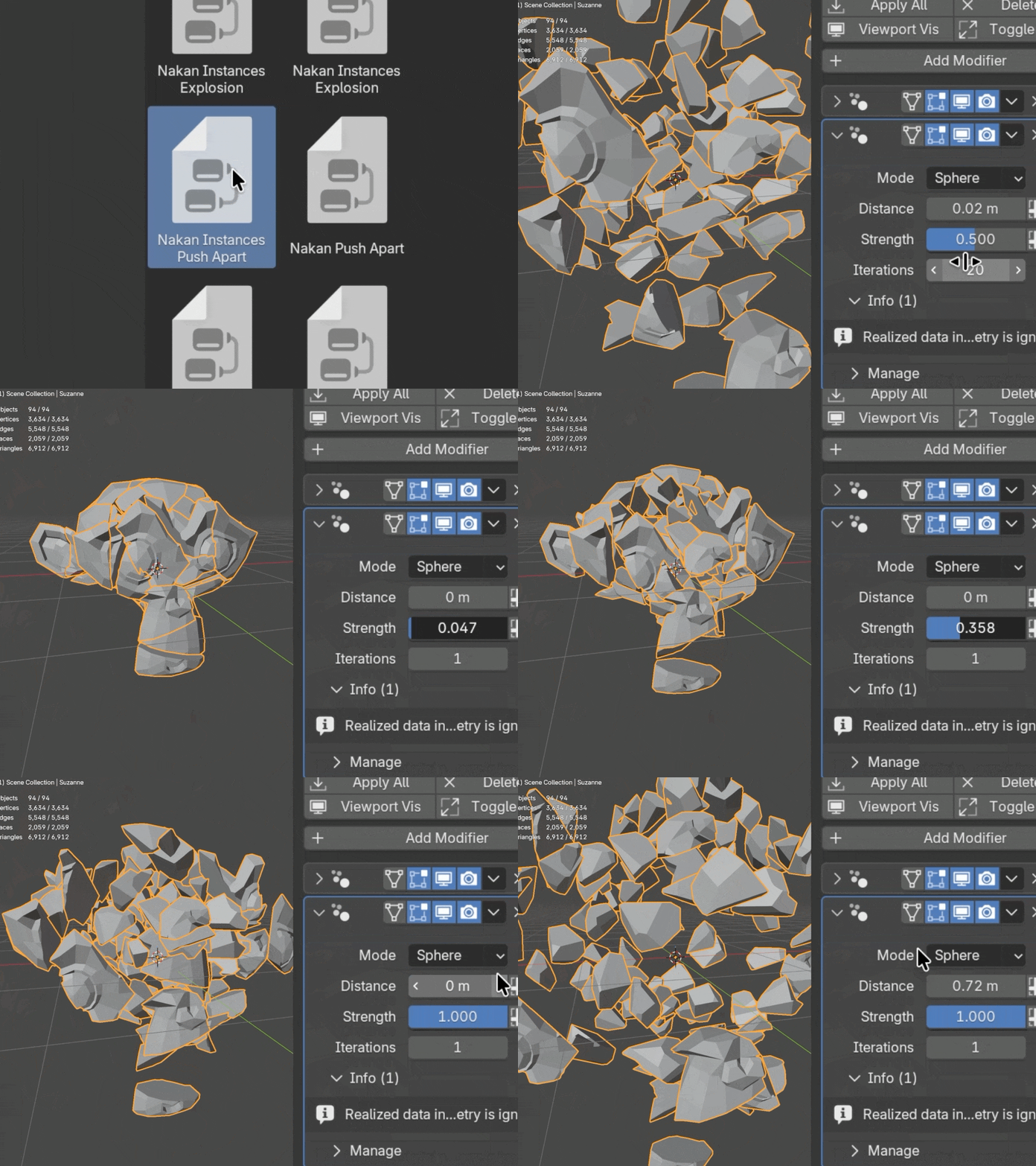
Pushes the pieces away from each other until none of them overlap. More iterations give a cleaner result, but it gets heavier.
How to use
- Select the mesh you want to break, add a Geometry Nodes modifier and drag Nakan Voronoi Fracture into the node tree (Asset Browser > Fracture).
- Choose Random or Grid distribution, then adjust Cell Size, Max Pieces, Jitter, Stretch and Seed until the pieces look right. Add a little Gap if you want to see the cracks.
- For heavy meshes, switch the solver to Manifold with Watertight on. Keep Exact when the original surface must stay intact.
- Assign a material to the inner faces so the inside looks different from the outside.
- Add a Bake node right after the fracture and bake it, so the next steps stay fast while you animate.
- Add Nakan Instances Explosion after it. Choose Radial or Linear mode and keyframe Explode to animate the explosion. Set each axis to Both, Positive, Negative or Off, weight it with its Influence, move the Center Offset, and add Randomness and Random Rotation as needed.
- If pieces end up inside each other (or you scattered objects that overlap), add Nakan Push Apart. Distance sets the clearance between pieces, Strength how much of each overlap is fixed per step, and Iterations how many steps it runs. Raise Iterations until nothing overlaps.
Requires Blender 5.2 or newer.