Nakan Text Animator Tools
After Effects' text animators in Blender, plus what AE can't do: animated materials, extrude and bevel per character.
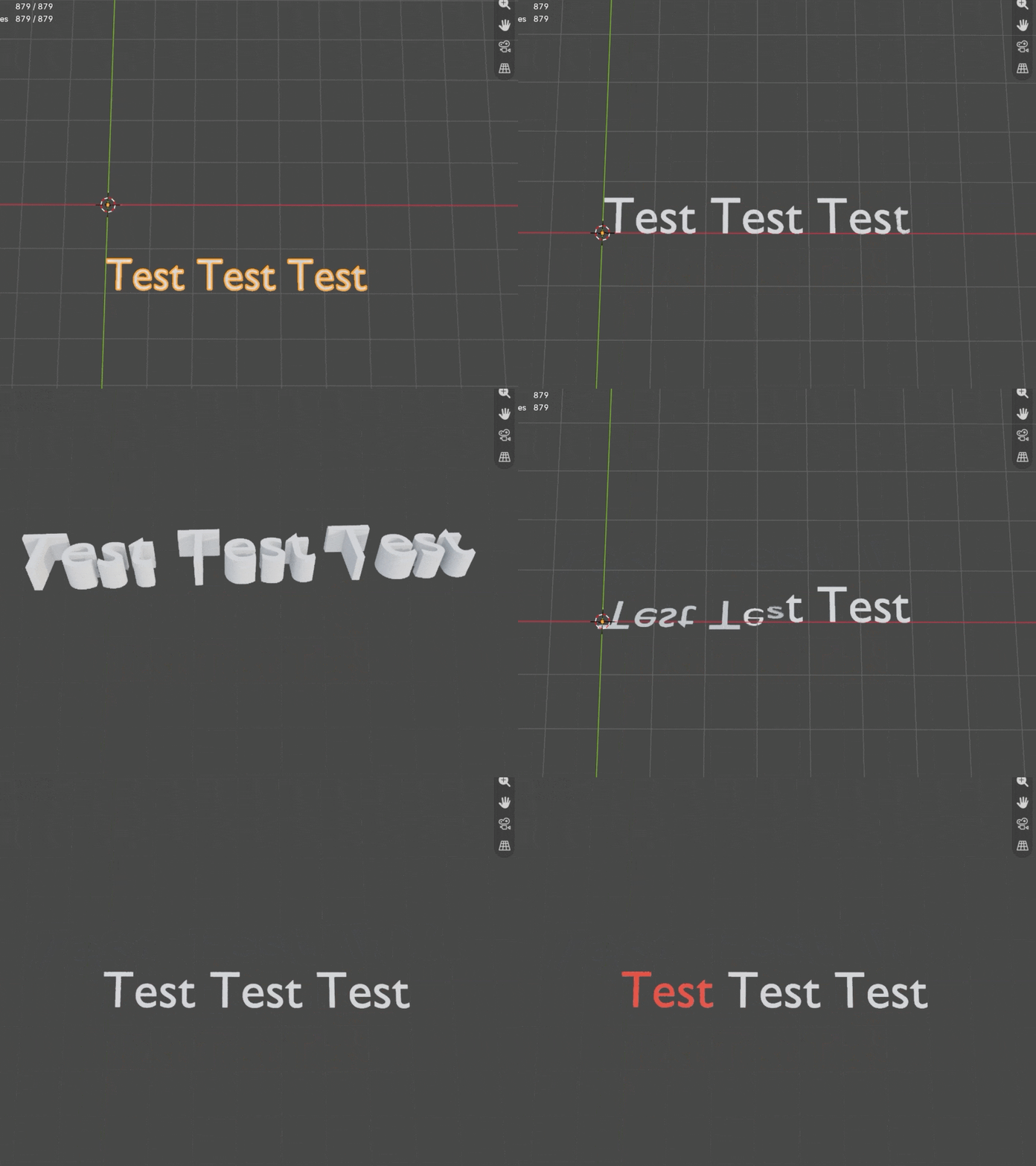
I missed After Effects' text animators in Blender. They open up a huge range of type animation, and here they go a bit further than in AE: since the text is 3D, you can also animate materials, extrude and bevel per character. The text stays a normal Text object, so you can press Tab and retype it at any moment; font, size, spacing, alignment, bold/italic and material slots stay in sync.


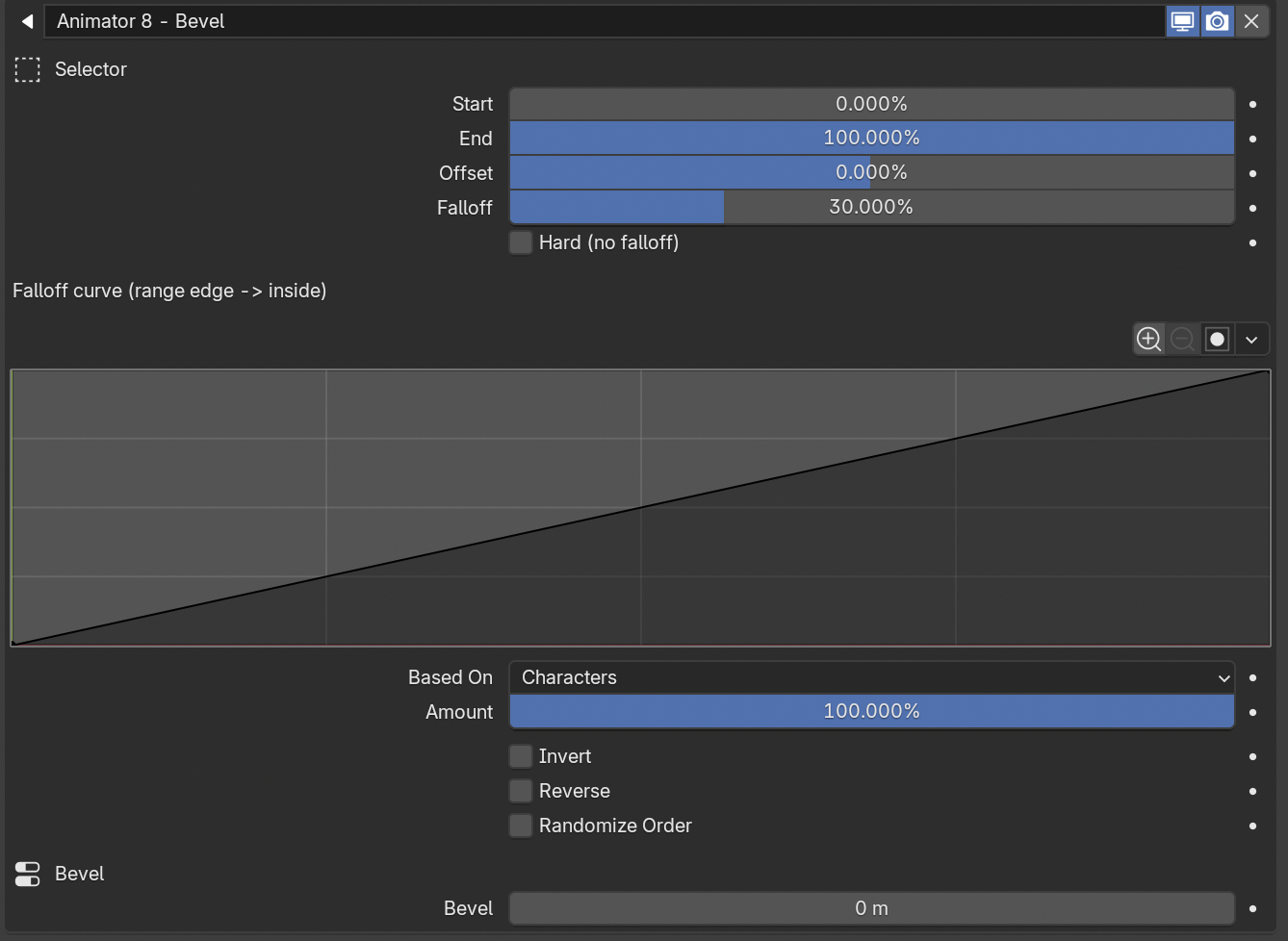
Download
Also on GitHub, with the source code and every release.
To install: Edit > Preferences > Add-ons > Install from Disk, pick the .py file and enable it. Version 1.2.0.
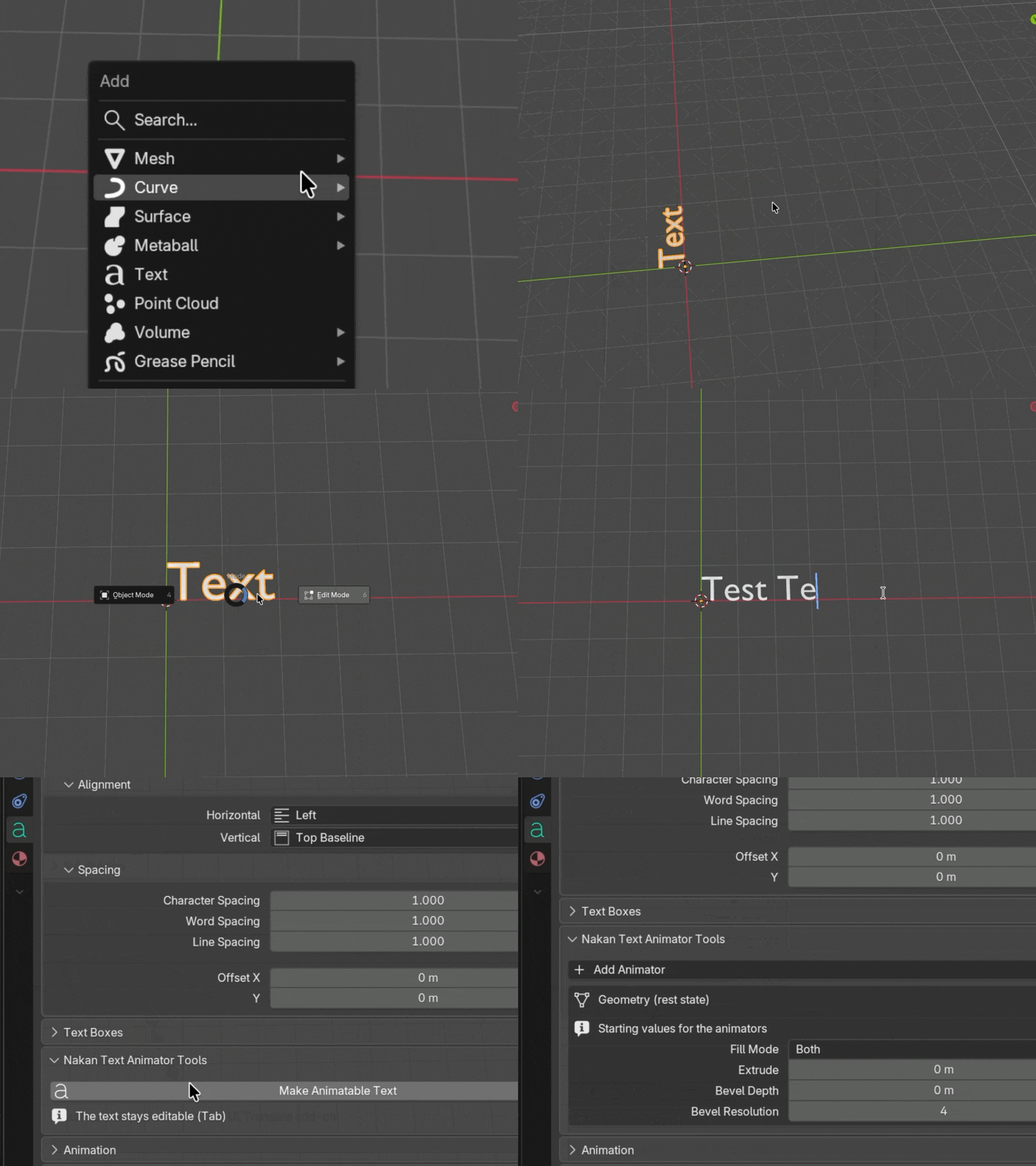
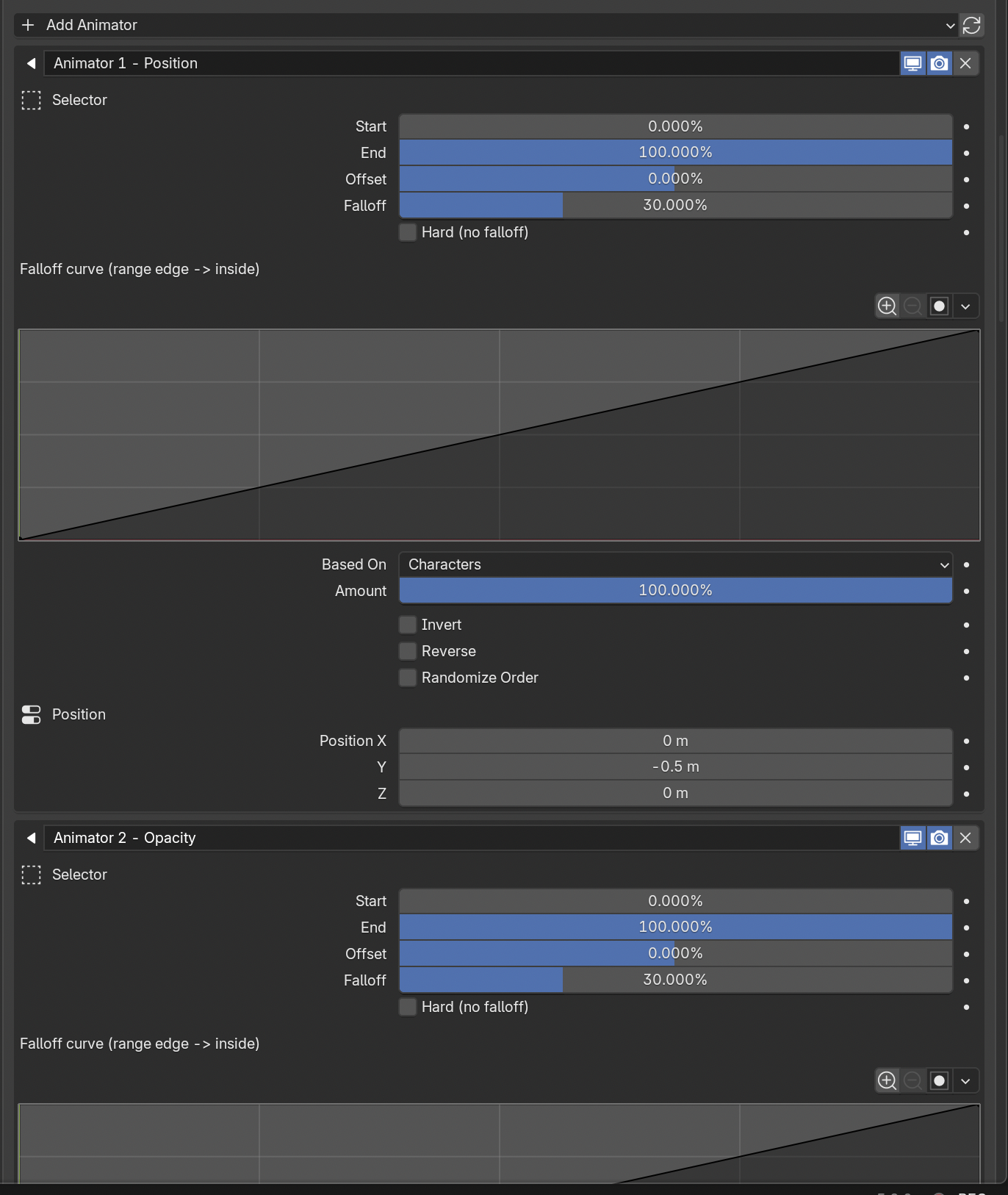
Setup. Create a text, open Properties > Text and click Make Animatable Text. From then on every animator is in the Add Animator menu, and you can stack as many as you want. Each one has its own range selector, like in After Effects.
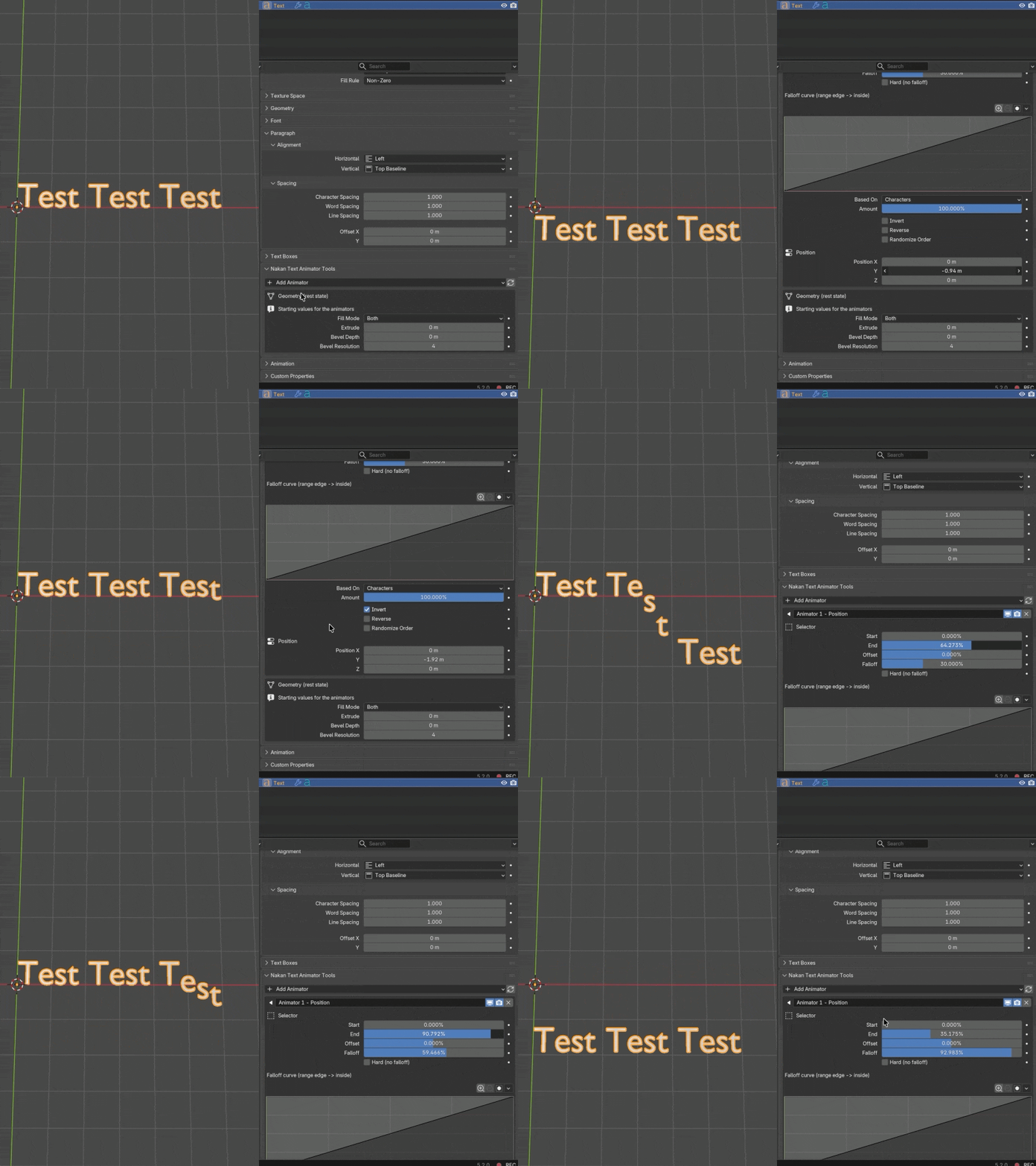
Position. Moves the selected characters. Together with Opacity it gives the classic type-on, with letters rising into place.
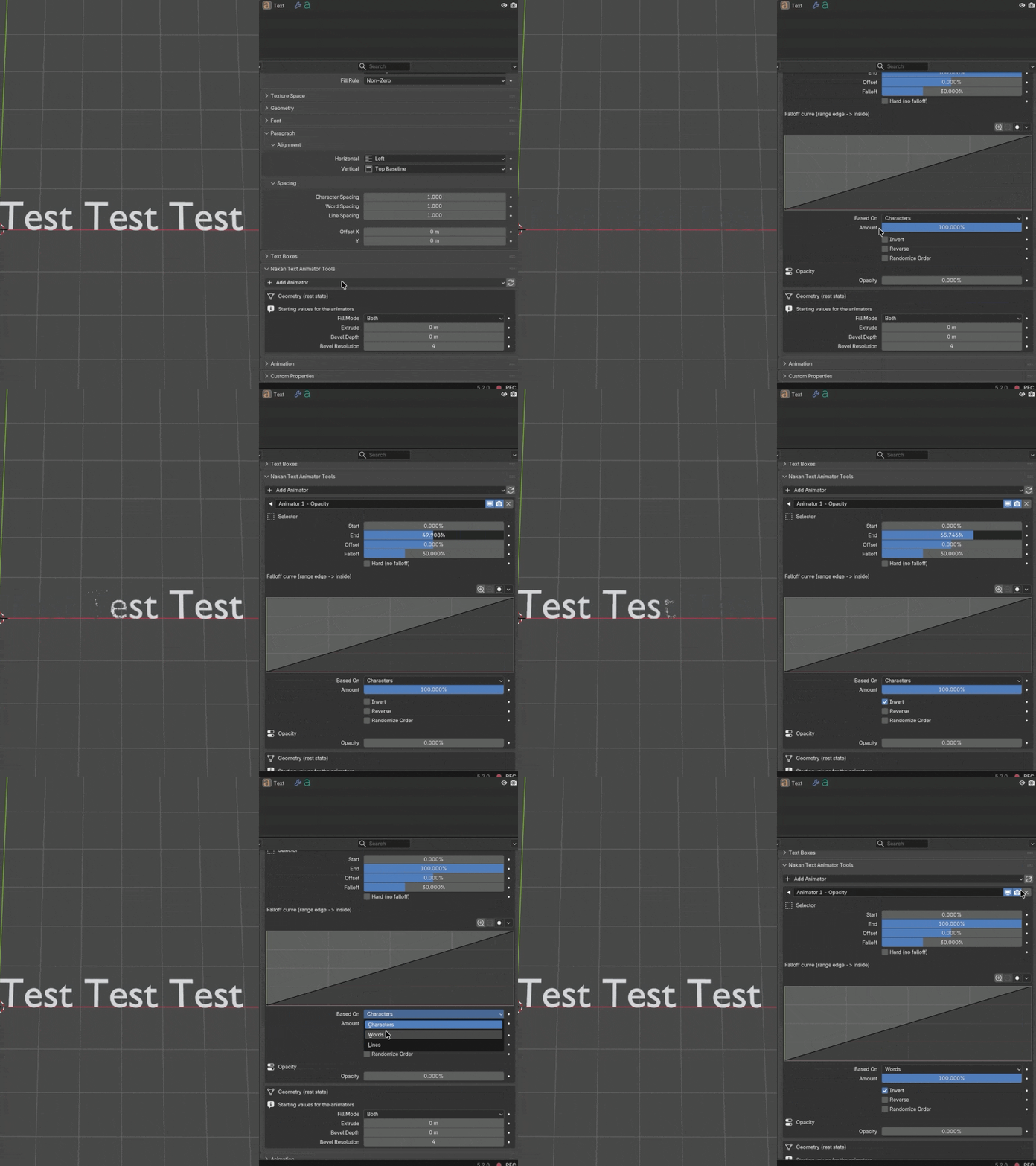
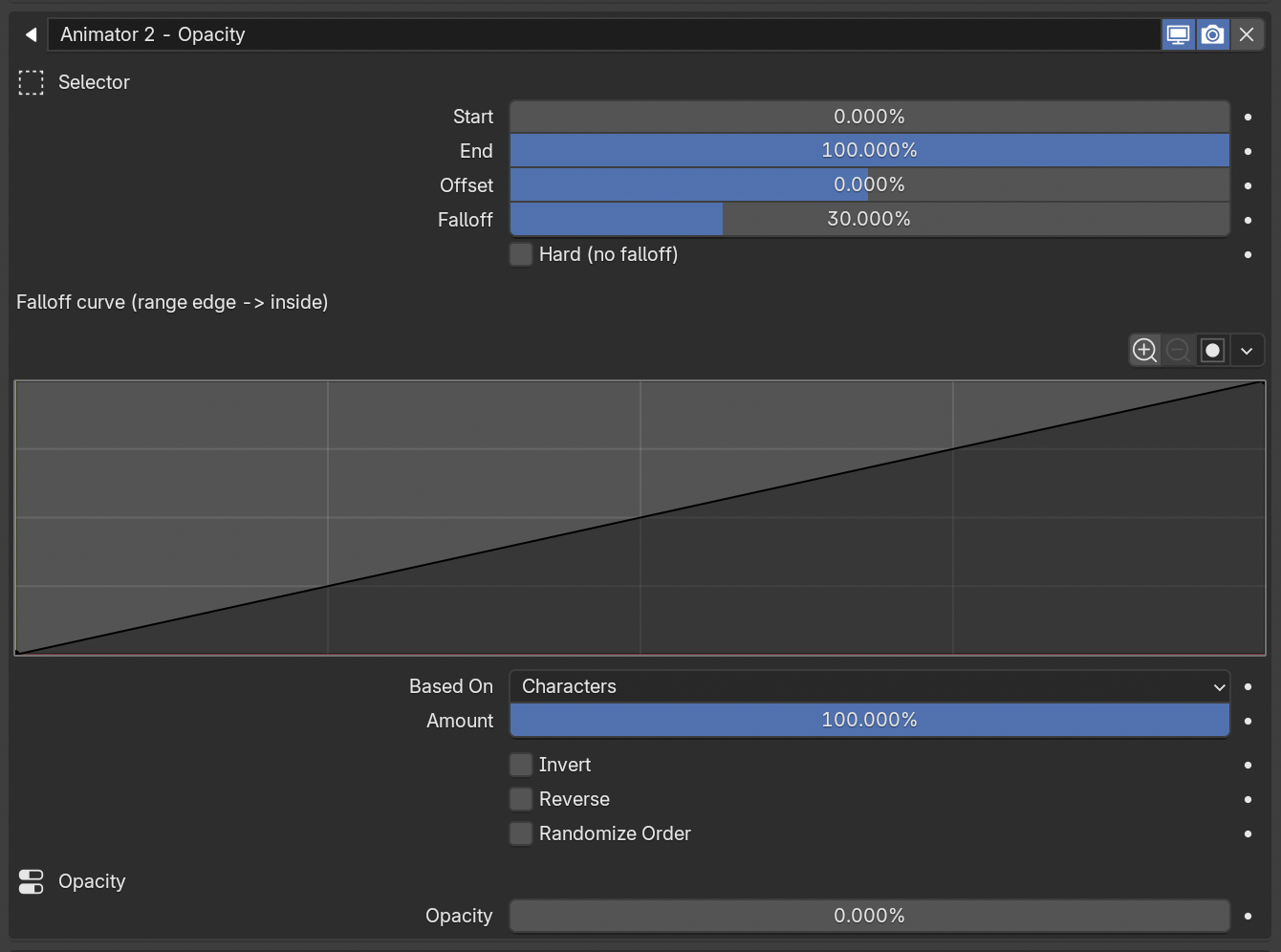
Opacity. Fades characters in or out. It shows in Material Preview and Rendered view.
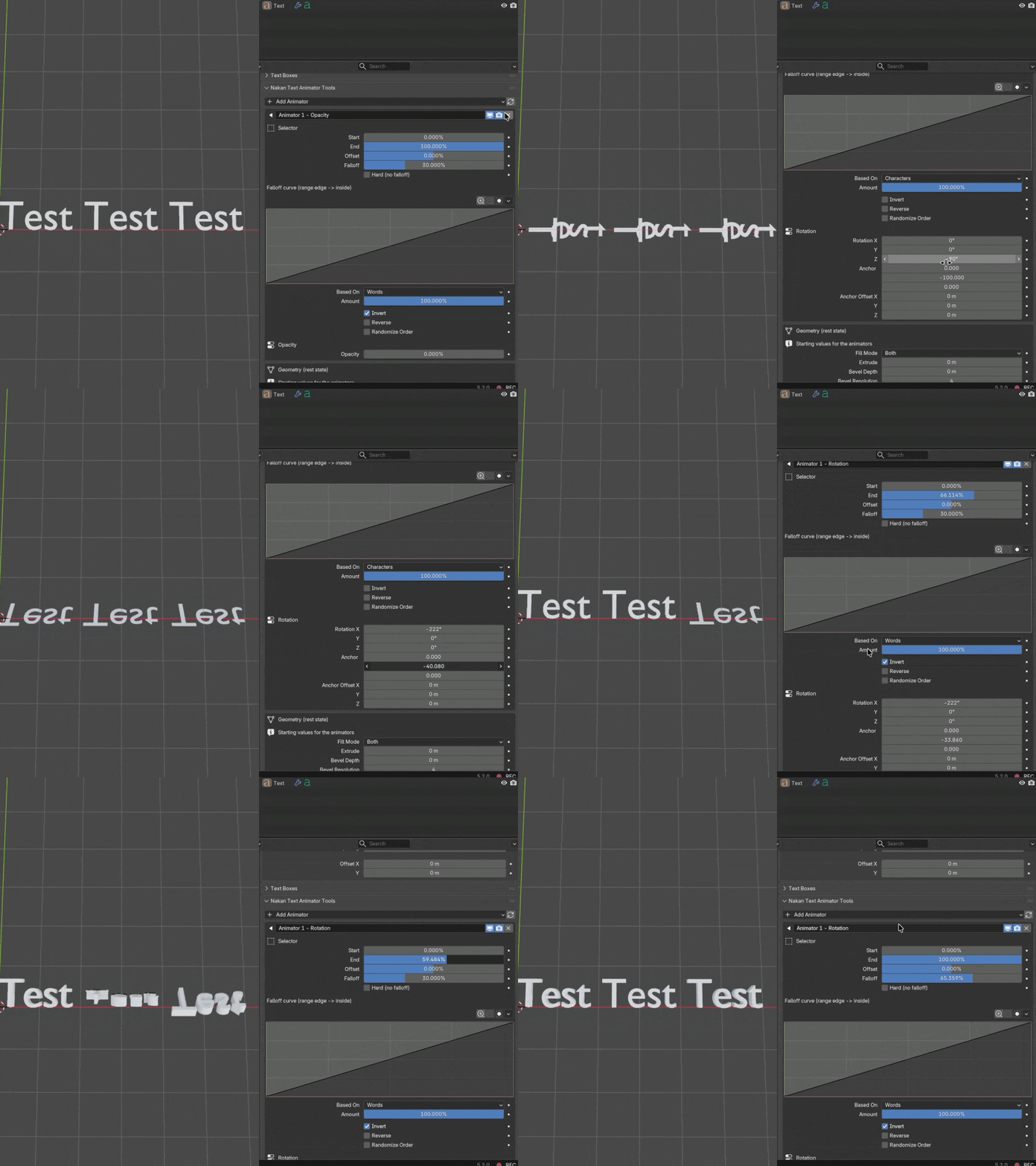
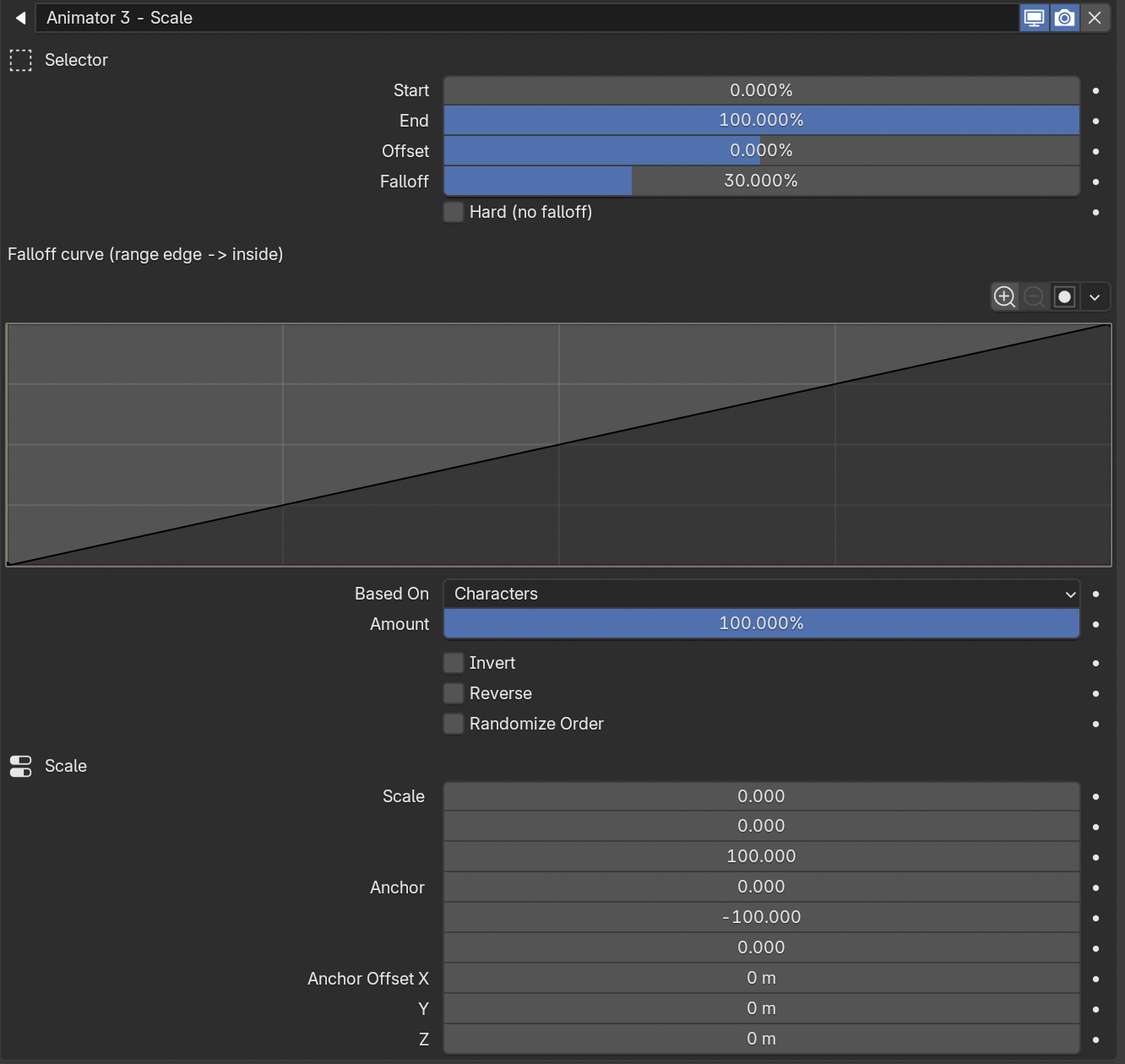
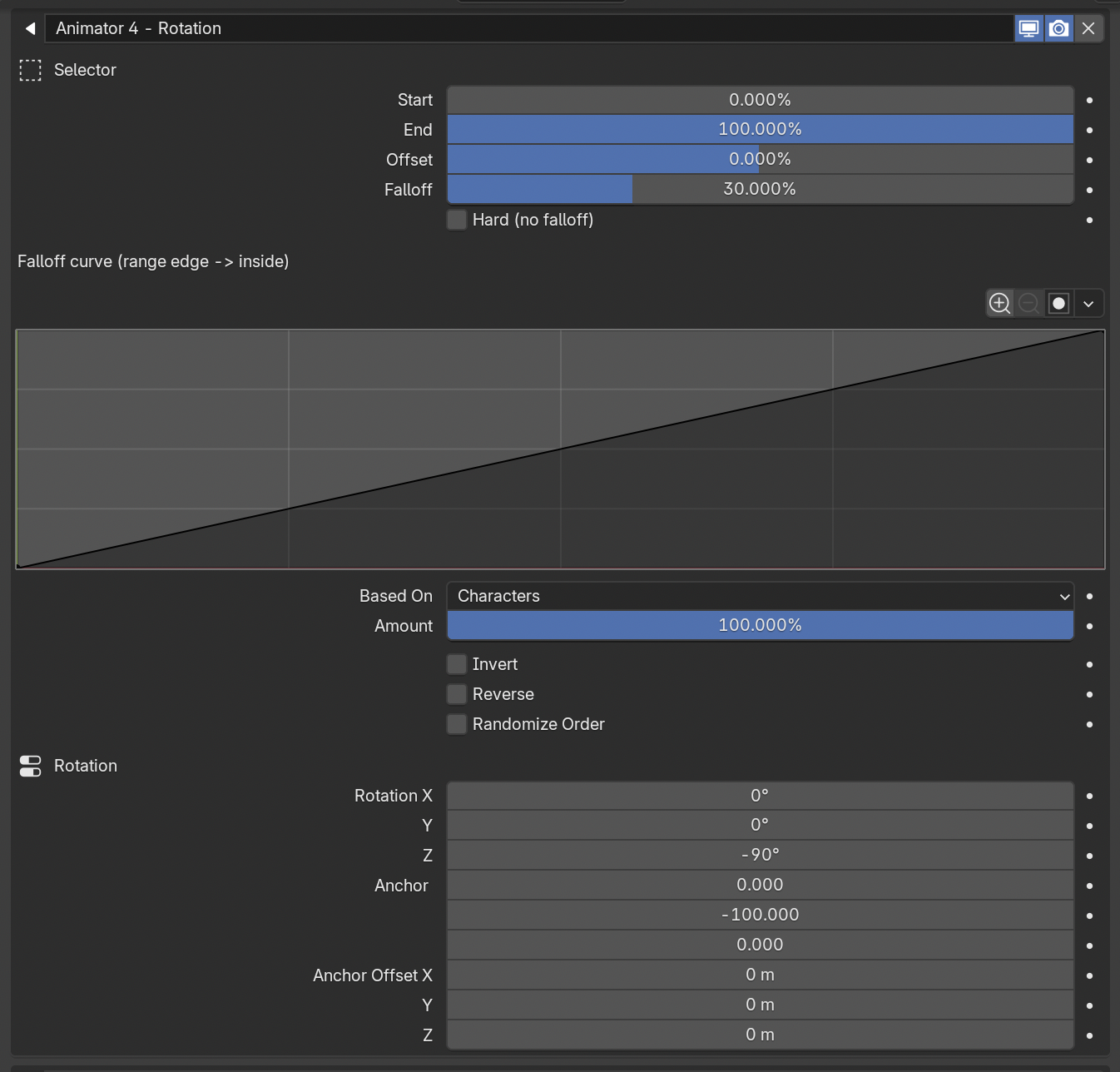
Rotation. Rotates each character around its own pivot. Anchor places that pivot inside the letter, so letters can flip up from the baseline or spin in place. Scale works the same way.
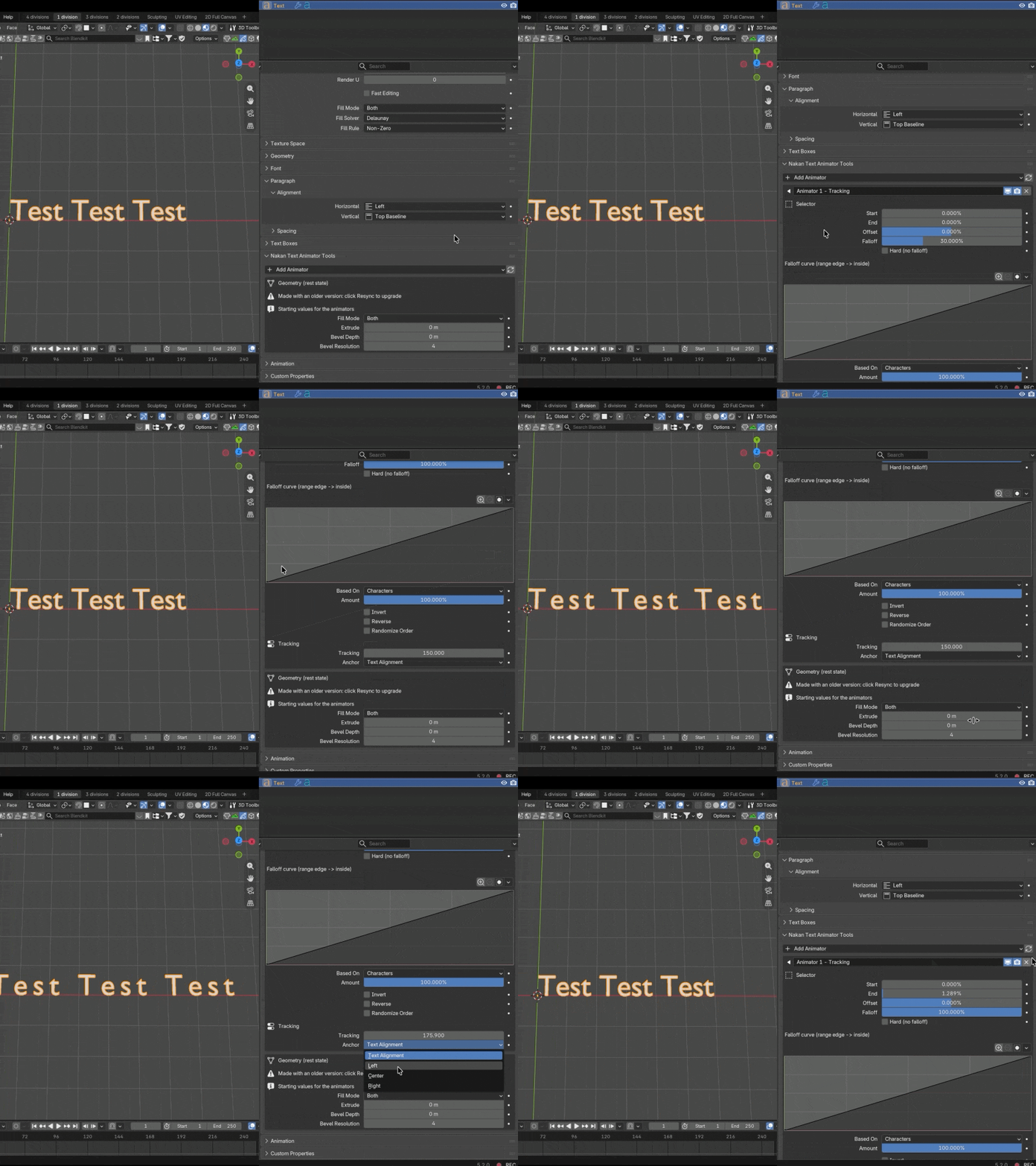
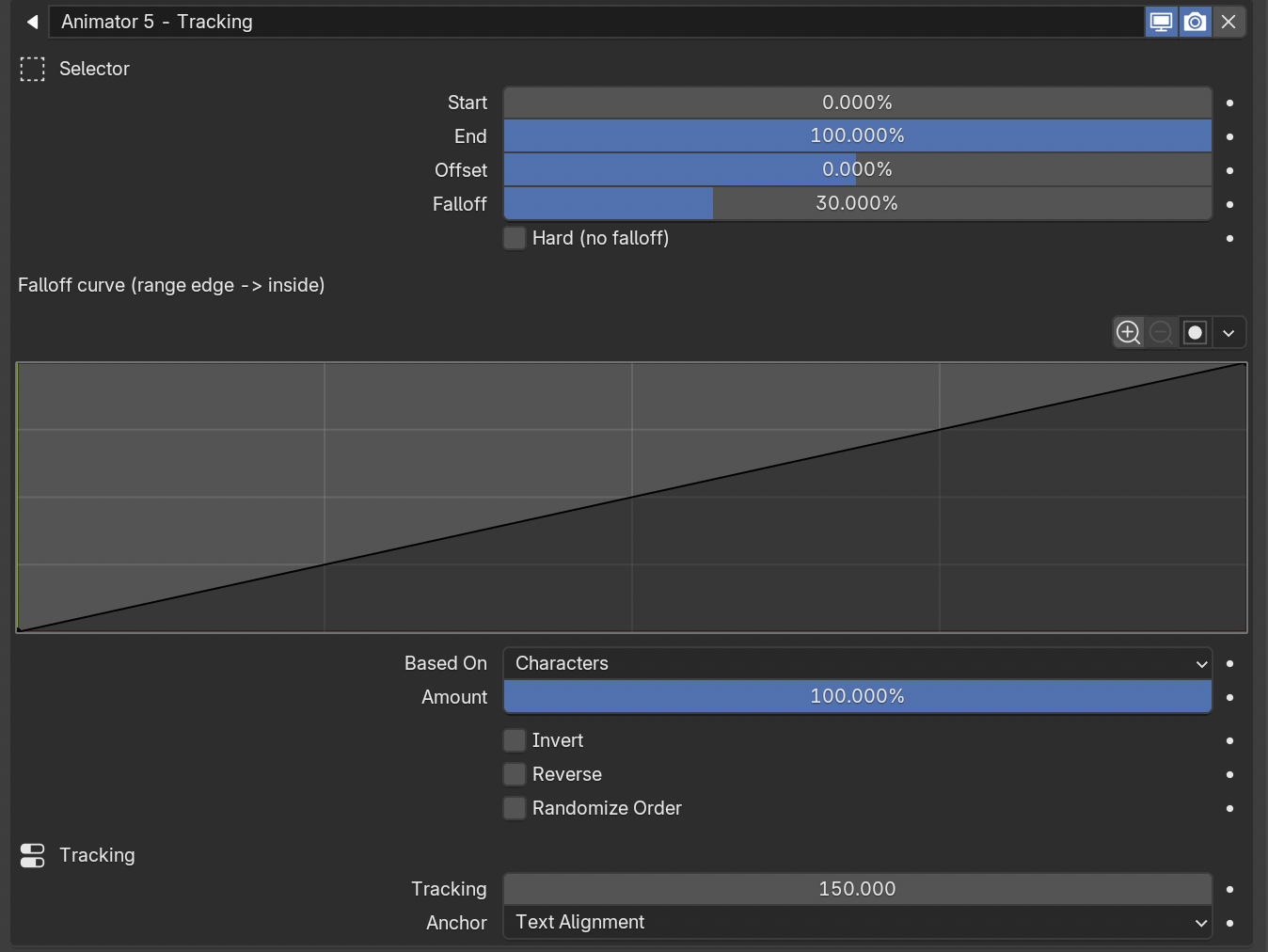
Tracking. Spreads the letters apart, in the same 1/1000 em units as After Effects. Anchor picks which part of the line stays still: the text alignment, the left edge, the center or the right edge.
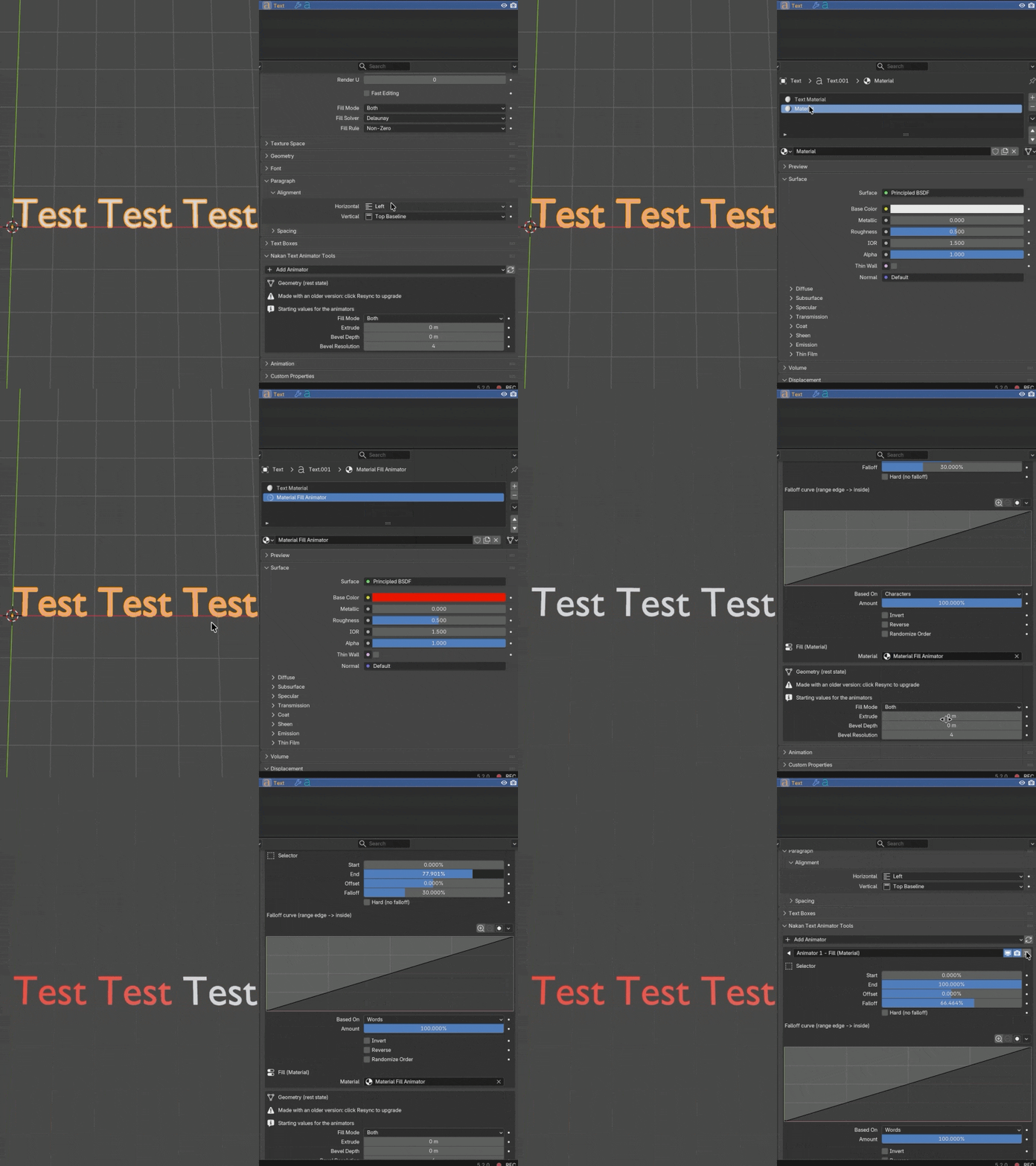
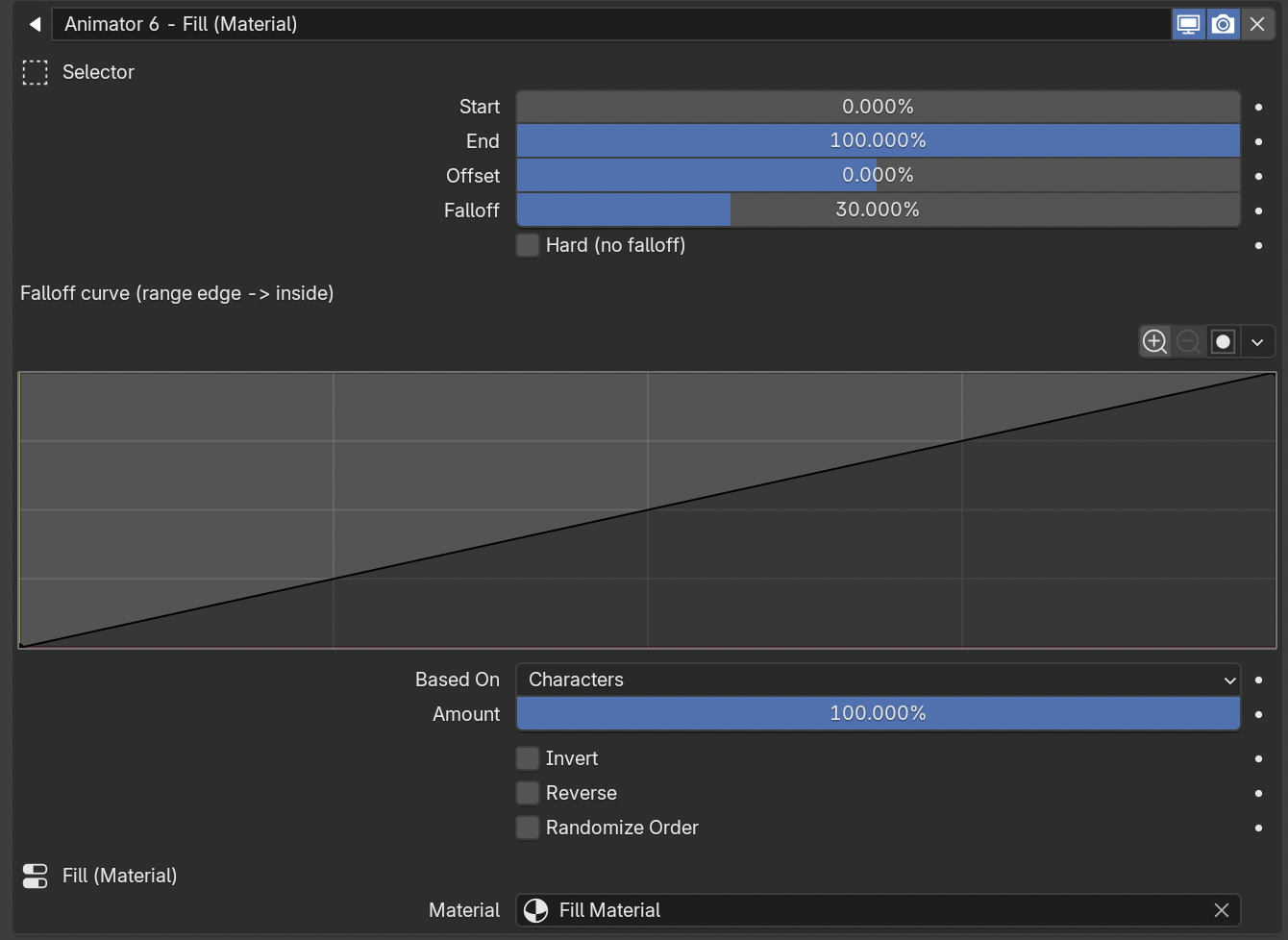
Material. Blends the selected characters into another material, so a color or shader change can sweep through the text.
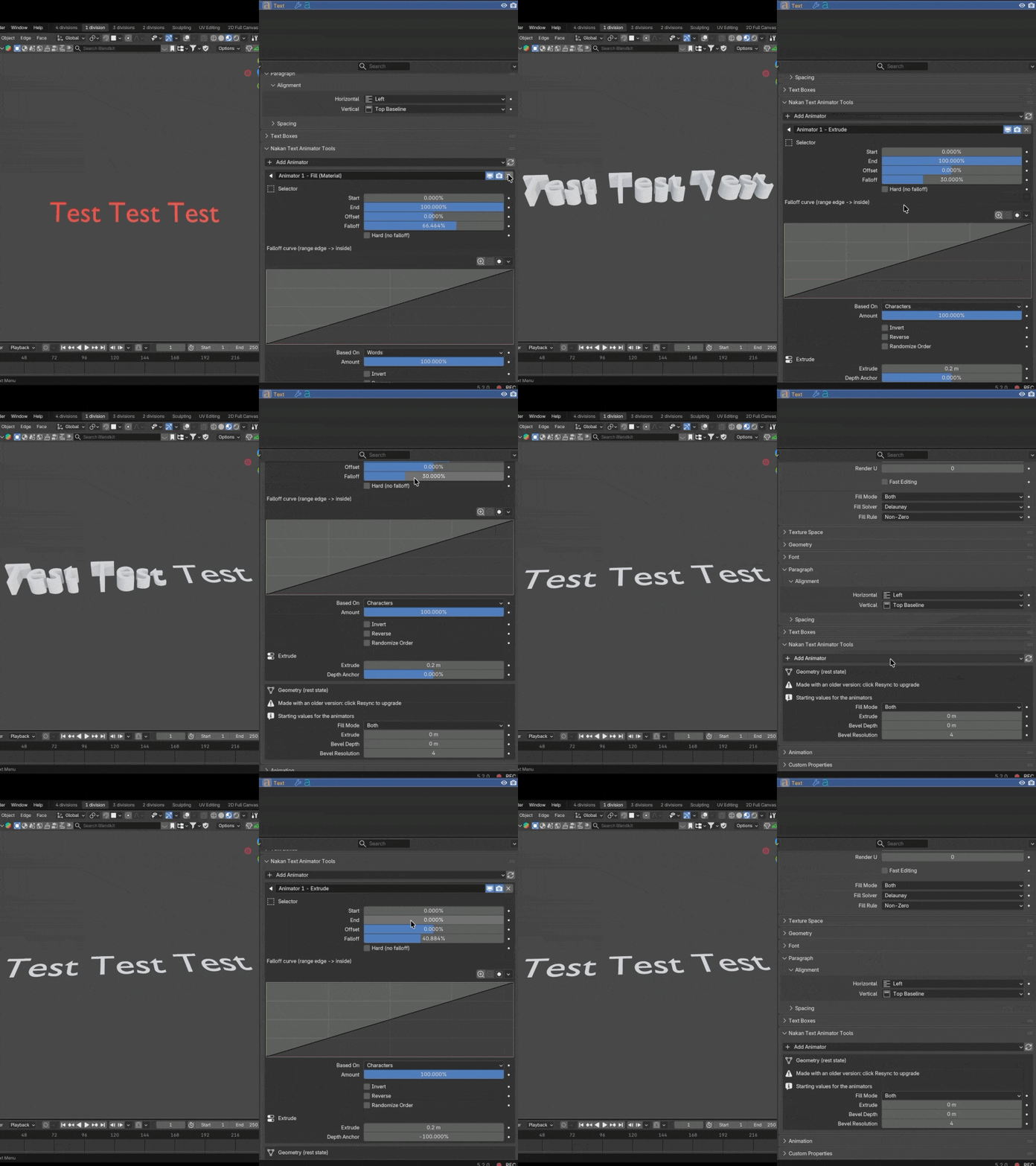
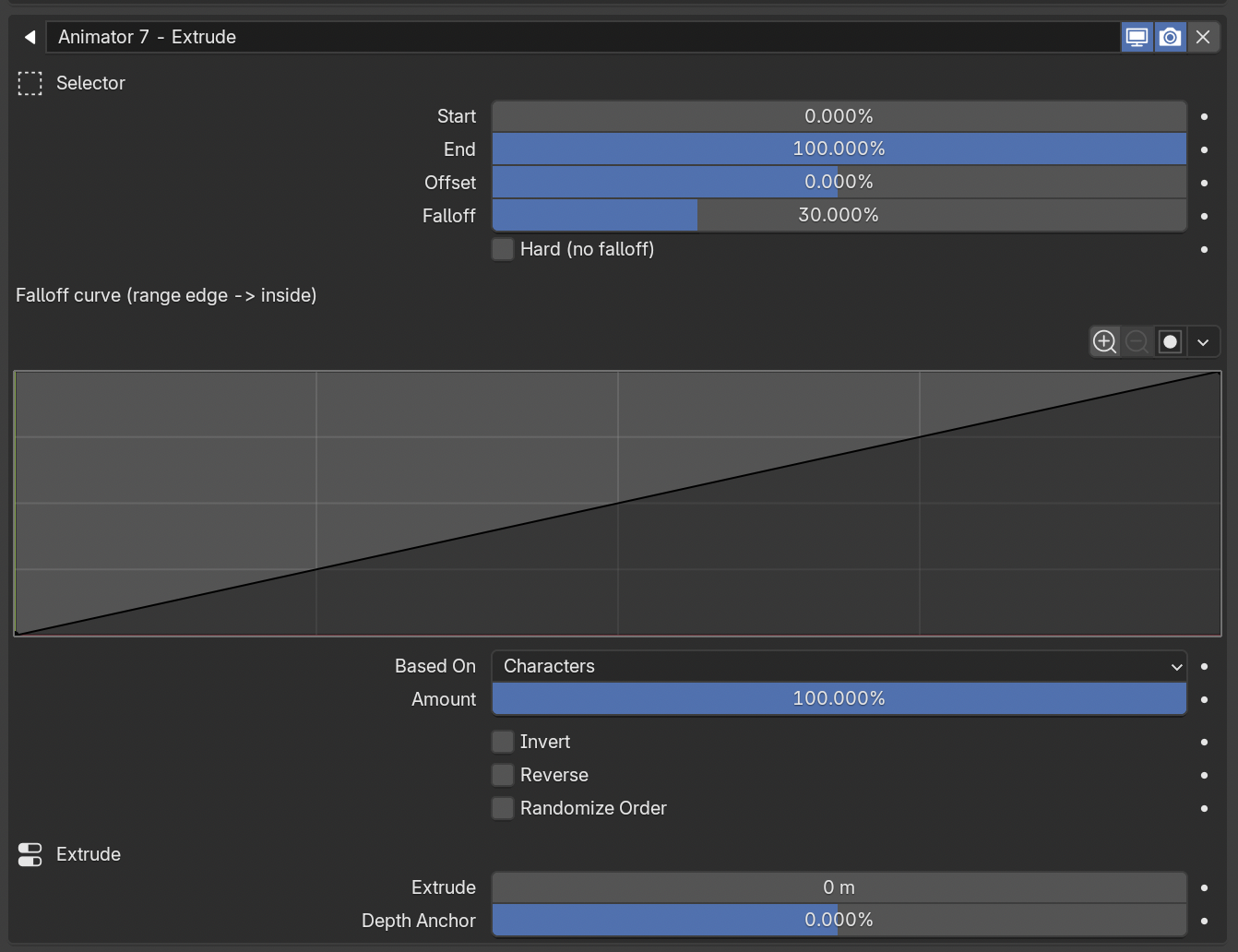
Extrude and Bevel. Depth and bevel per character, which AE can't do. Depth Anchor sets whether the letters grow forward, backward or from the center.
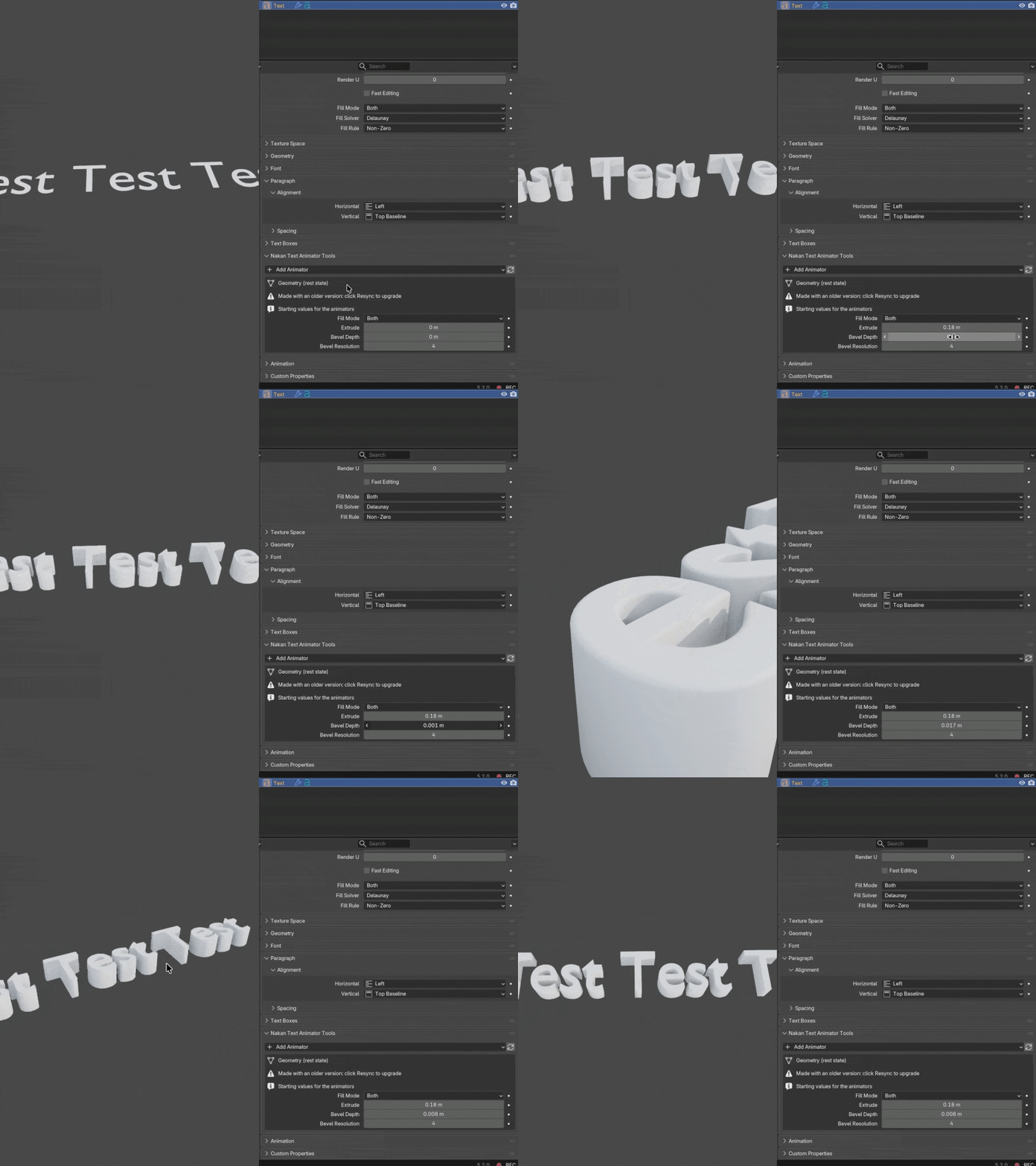
Base geometry. The last box of the panel holds the text's own Fill Mode, Extrude and Bevel: the starting values the animators work from.
How to use
- Add a text with Shift+A > Text, press Tab and type it. Set font, size and alignment in Properties > Text (Object Data) as usual.
- In the same tab, click Make Animatable Text.
- Click Add Animator and choose the property: Opacity, Position, Scale, Rotation, Tracking, Fill (Material), Extrude or Bevel.
- In the animator's properties, set the value the characters should have when they are selected, for example Opacity 0% or Position Y -0.5.
- Animate the Range Selector: keyframe Start, End or Offset (for example End from 0% to 100%) and the effect sweeps through the text. Falloff softens the edge between affected and unaffected characters, and Based On switches between characters, words and lines. Ease Low and Ease High smooth each character's own move, so letters settle into place instead of stopping abruptly (Ease Low on the resting side, Ease High on the animator's side).
- Stack more animators for combined effects, such as Position and Opacity together for a classic type-on.
- To animate into another material, add a Fill (Material) animator and pick the material. For depth, use Extrude or Bevel animators.
- Check Opacity and Fill in Material Preview or Rendered view; Solid view doesn't show them.
- Retype the text whenever you want with Tab. If a file made with an older version shows "Made with an older version", click the Resync button next to Add Animator.
Requires Blender 5.0 or newer.