Session Recorder
Procreate's timelapse, for Blender: every session is recorded quietly in the background, with nothing to start or stop.
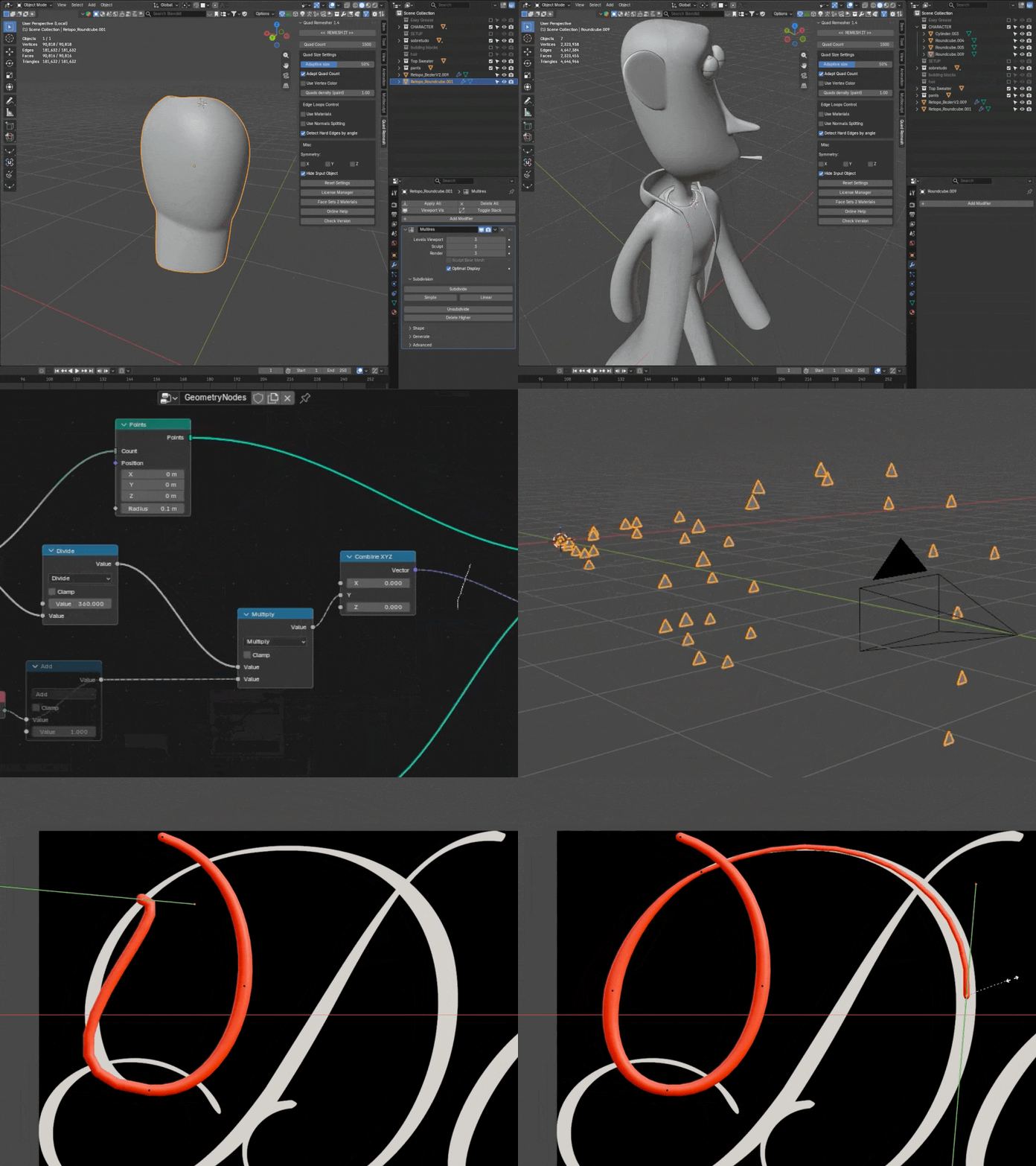
I like having recordings of my process, but opening OBS every time I opened Blender felt like bureaucracy, and sometimes it killed the spontaneity of just starting something. So I made this: it records on its own as soon as Blender opens, and there's nothing between you and the work. Think of it as Procreate's timelapse, inside Blender. I hope it's useful to you too.
- Only what changes: a frame is captured only when something on screen changes, so idle time takes no space in the video.
- What you actually see: on macOS a small helper records the Blender window itself (viewport, UV editor, node editors, Cycles, menus). Nothing extra runs inside Blender, so it can't slow it down or make it crash, and if Blender crashes the video is still finished properly.
- Fallback mode for other systems or without permission: it captures each editor from inside Blender. The image editor can't be captured this way.
- Smart sessions: if you leave Blender idle it closes the video and waits; when you come back it starts a new file. Very short sessions are discarded. Resizing the window or changing monitors starts a new video at the new size.
- Crash safe: videos are written as fragmented MP4, so they stay playable even after a hard shutdown. No piles of PNG frames on your disk.
- Saved as
<your folder>/YYYY-MM-DD/YYYY-MM-DD_HH-MM-SS.mp4.
Download
session_recorder_1.0.0.zip21.83 KiB
Also on GitHub, with the source code and every release.
To install: Edit > Preferences > Add-ons > Install from Disk, pick the .zip and enable it.
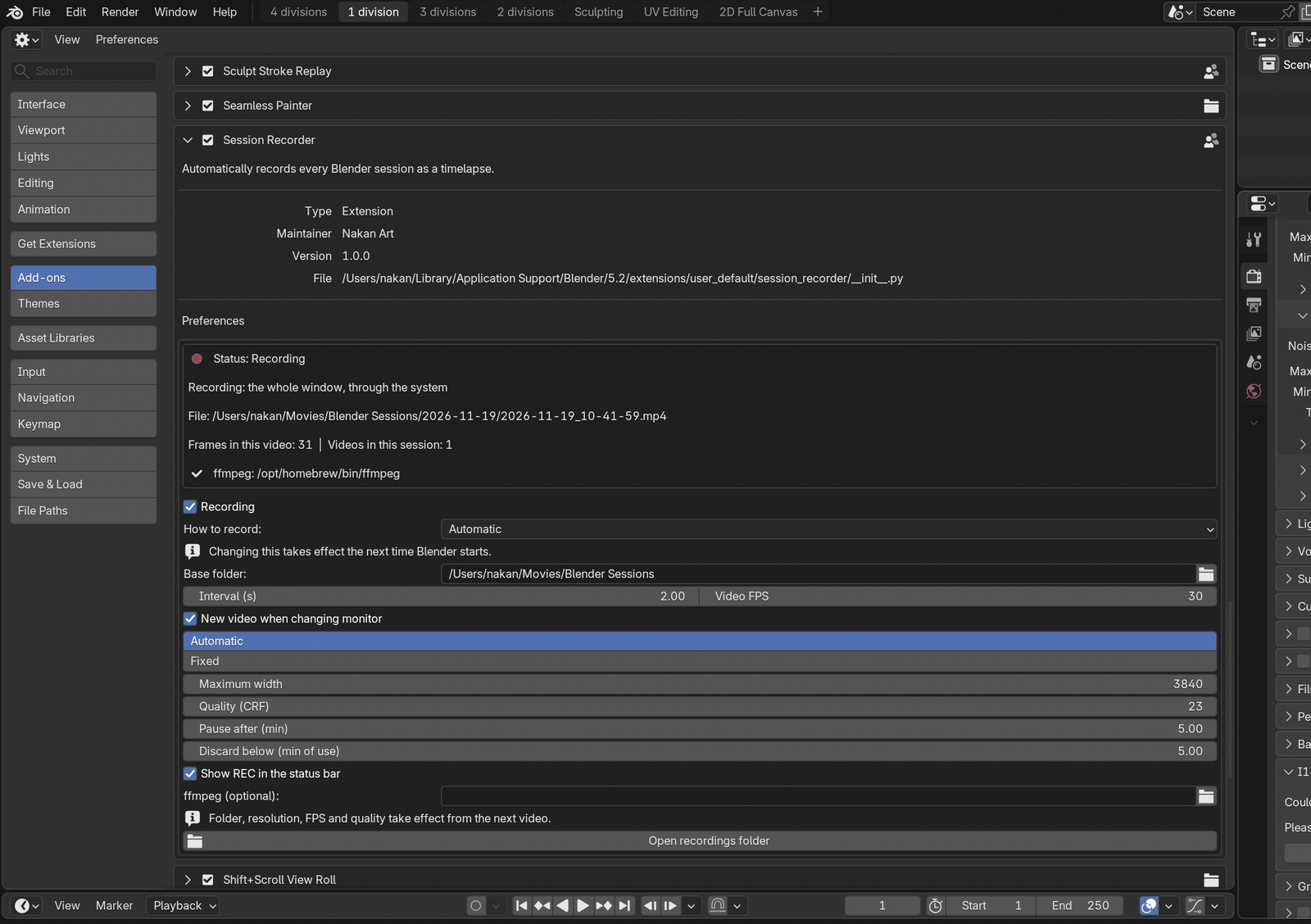
How to use
- Install ffmpeg, which the add-on uses to write the videos. On Mac:
brew install ffmpeg. On Windows:winget install ffmpeg. - In Blender, go to Edit > Preferences > Add-ons > Install from Disk, pick the .zip and enable Session Recorder.
- On macOS, give Blender the Screen Recording permission in System Settings > Privacy & Security > Screen Recording, then restart Blender. Without it the add-on uses the fallback mode.
- Open the add-on's preferences (Edit > Preferences > Add-ons > Session Recorder) and choose the Base folder where the videos go. You can also adjust the capture interval, the frame rate and the resolution there.
- Work as usual. A REC indicator in the status bar at the bottom shows it's recording; click it to pause or resume. It shows "on standby" while Blender is idle.
- Click Open recordings folder in the preferences to find your videos, one per session, sorted by date.
Requires Blender 4.2 or newer and ffmpeg.