Paintover PSD
Build the scene in Blender, paint it in Photoshop or Affinity. One click renders a layered PSD with every object already selectable.
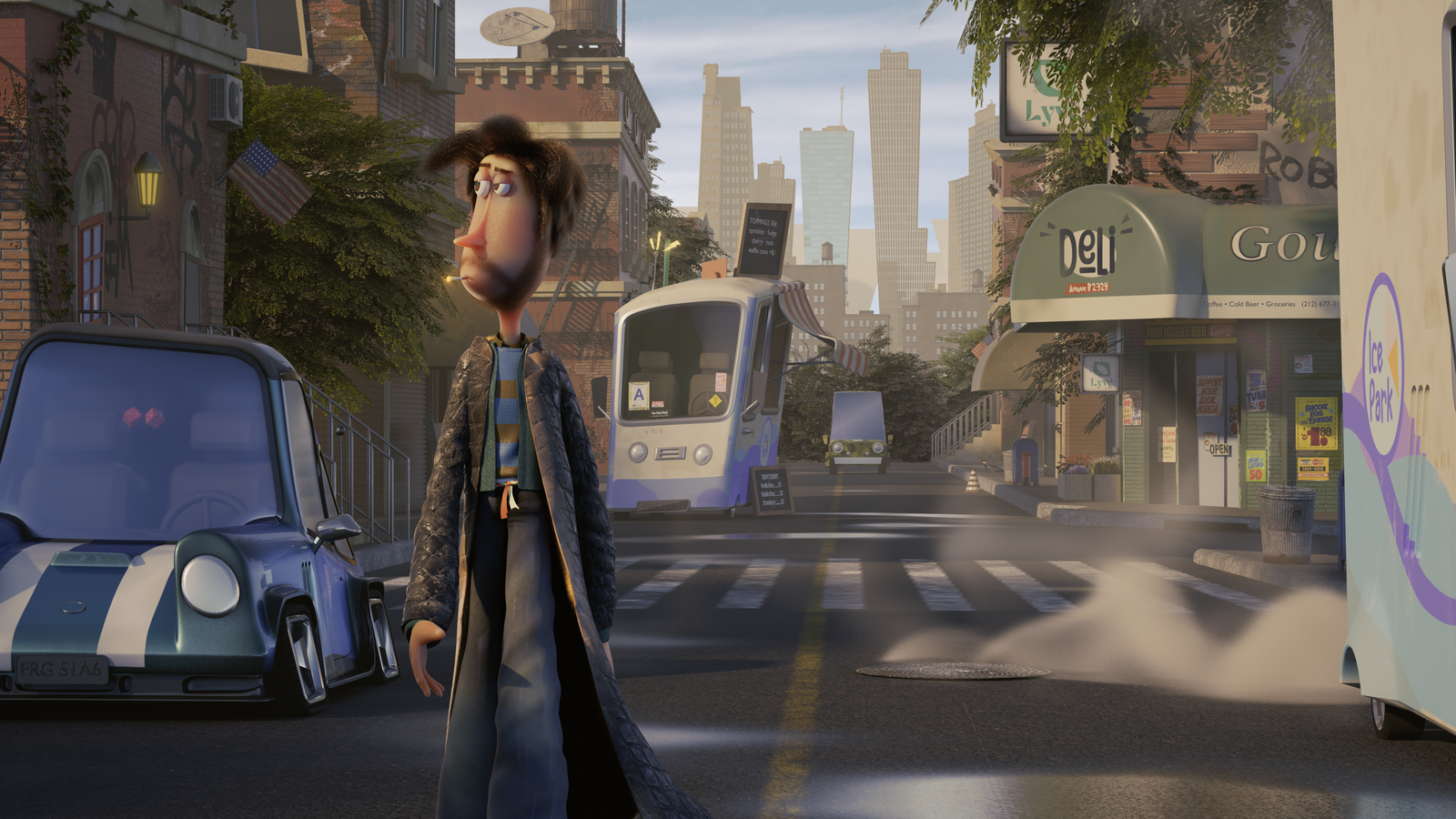
Painting over a 3D layout is a great way to make illustrations and static backgrounds: Blender gives you perspective, proportions and light, and the painting happens in a 2D app. What slowed me down was the handoff. Cryptomatte is the best way to get object masks out of a render, but Photoshop and Affinity can't read it, and the magic wand leaves jagged edges. So I made this add-on to render straight to a PSD with everything I need to start painting.
- One PSD, ready to paint: the render, the flat colors and the shadows on their own layers.
- A mask per object and per material, with clean antialiased edges, organized in groups. Each mask has its own color: click an object with the Move tool (Auto-Select) to jump to its layer, or Ctrl/Cmd + click the thumbnail to load it as a selection.
- Shadows as a layer: black with transparency, so you can recolor, soften or repaint them. Use a Shadow Catcher for objects on a transparent background, or get the shadows on every surface (renders twice, and also gives you the render without shadows).
- Export Last Render: turn the render already in the render window into a PSD, without rendering again.
- Convert EXR: turn a multilayer EXR with Cryptomatte, from Blender or another app, into a PSD.
Download
Also on GitHub, with the source code and every release.
To install: Edit > Preferences > Add-ons > Install from Disk, pick the .zip and enable it.
How to use
- Set up your scene and camera as usual. Cycles or EEVEE both work.
- Go to Properties > Output > Paintover PSD.
- Choose the layers you want: Render, Flat Colors, Object Masks and Material Masks.
- Choose the Shadows. Auto uses the Shadow Catcher when the scene has one (in Cycles), and Everything otherwise. To use a Shadow Catcher, select the floor (or a wall) and click Selected as Shadow Catcher; turn on Film > Transparent if you want only the objects and their shadows. Everything renders twice, so it takes twice as long.
- Pick the Folder (// is the folder of the .blend) and, if you want, a Name. Empty uses the .blend name and the frame number.
- Click Render Paintover PSD (also in the Render menu). Blender renders the current frame and saves the PSD.
- Open the PSD in Photoshop, Affinity Photo or any app that reads layered PSDs. Render is the final image, Flat Colors (hidden) has the base colors without light, and Shadows is a black layer with transparency. In Object Masks and Material Masks, Ctrl/Cmd + click a layer thumbnail to select that object, then paint on a new layer.
- Already rendered with F12? Click Export Last Render. Masks, flat colors and catcher shadows only show up if those passes were on when you rendered.
- Have an EXR from elsewhere? Click Convert EXR... and pick the file. The PSD is saved next to it. The EXR needs Cryptomatte and the ZIP (or no) compression.
Use Skip to leave masks out by name, separated by commas, like Light, Camera*, *_helper.
Requires Blender 4.2 or newer.