Nakan Bone Tools
Rigging from the Bone Collections panel: move, copy and delete collections with their bones, name them in one click, link DEF to CTR/MCH and symmetrize the whole rig, drivers included.
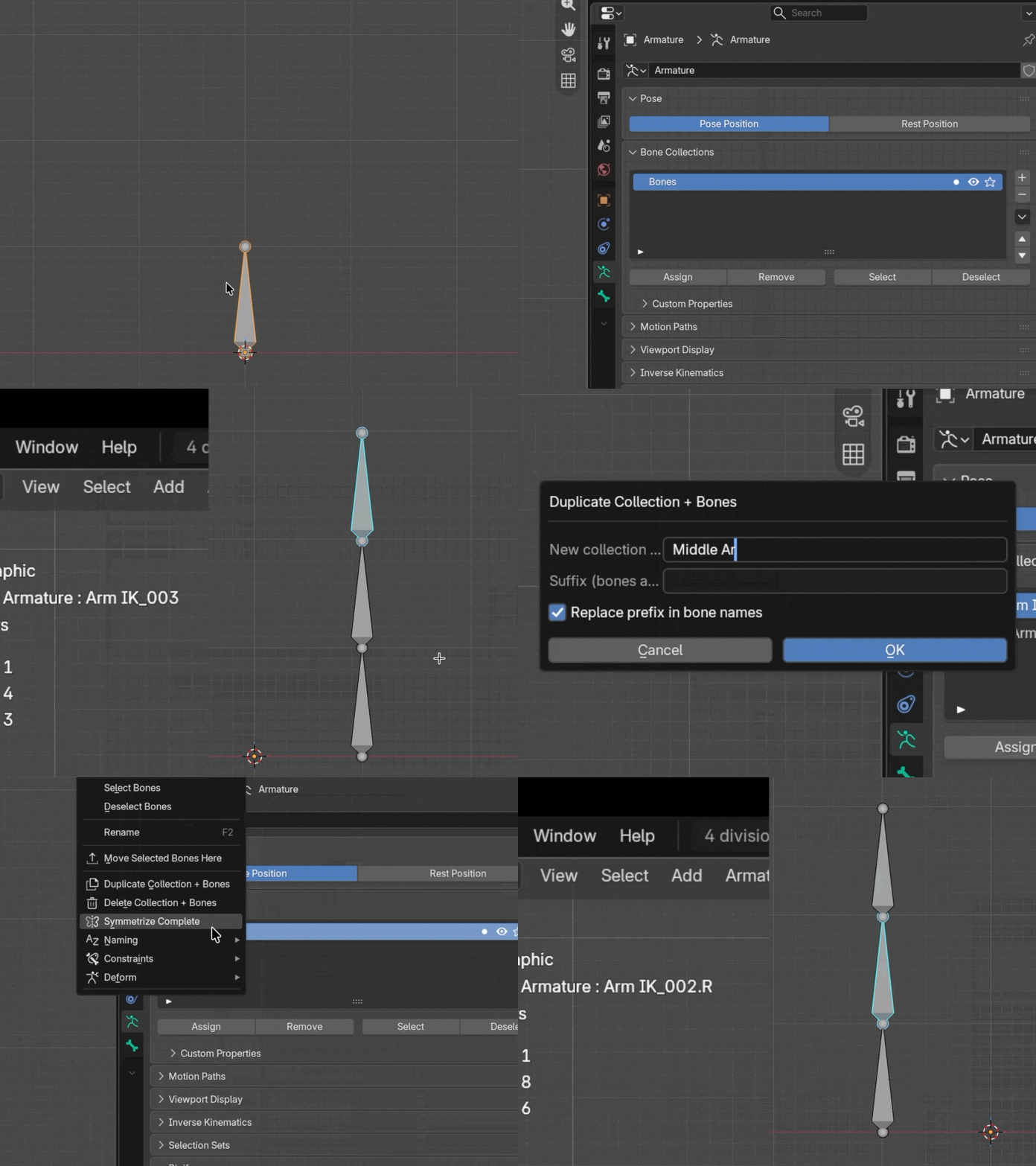
I love working from the Bone Collections panel; building complex bone chains there keeps me organized. But I kept leaving it for small things: renaming, copying the bones of a collection, wiring the deform bones to the controls, fixing drivers after Symmetrize. These tools add that to the panel's right-click menu (Properties > Armature), and they work on the active collection and its sub-collections.
They follow the way I name my rigs, with DEF, CTR and MCH prefixes and the same base name (DEF Left Arm_001, CTR Left Arm FK_001, MCH Left Arm IK_001), but most of them work with any naming.
Download
Also on GitHub, with the source code and every release.
To install: Edit > Preferences > Add-ons > Install from Disk, pick the .zip and enable it.
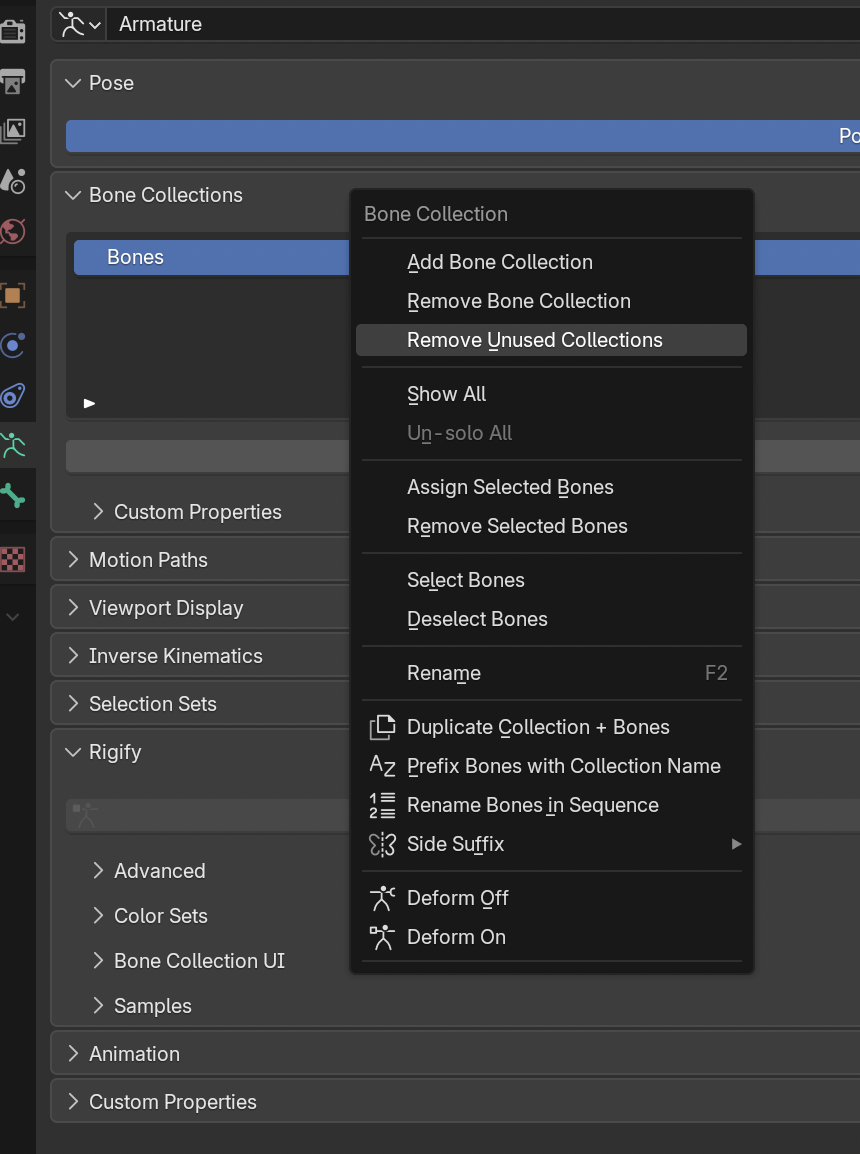
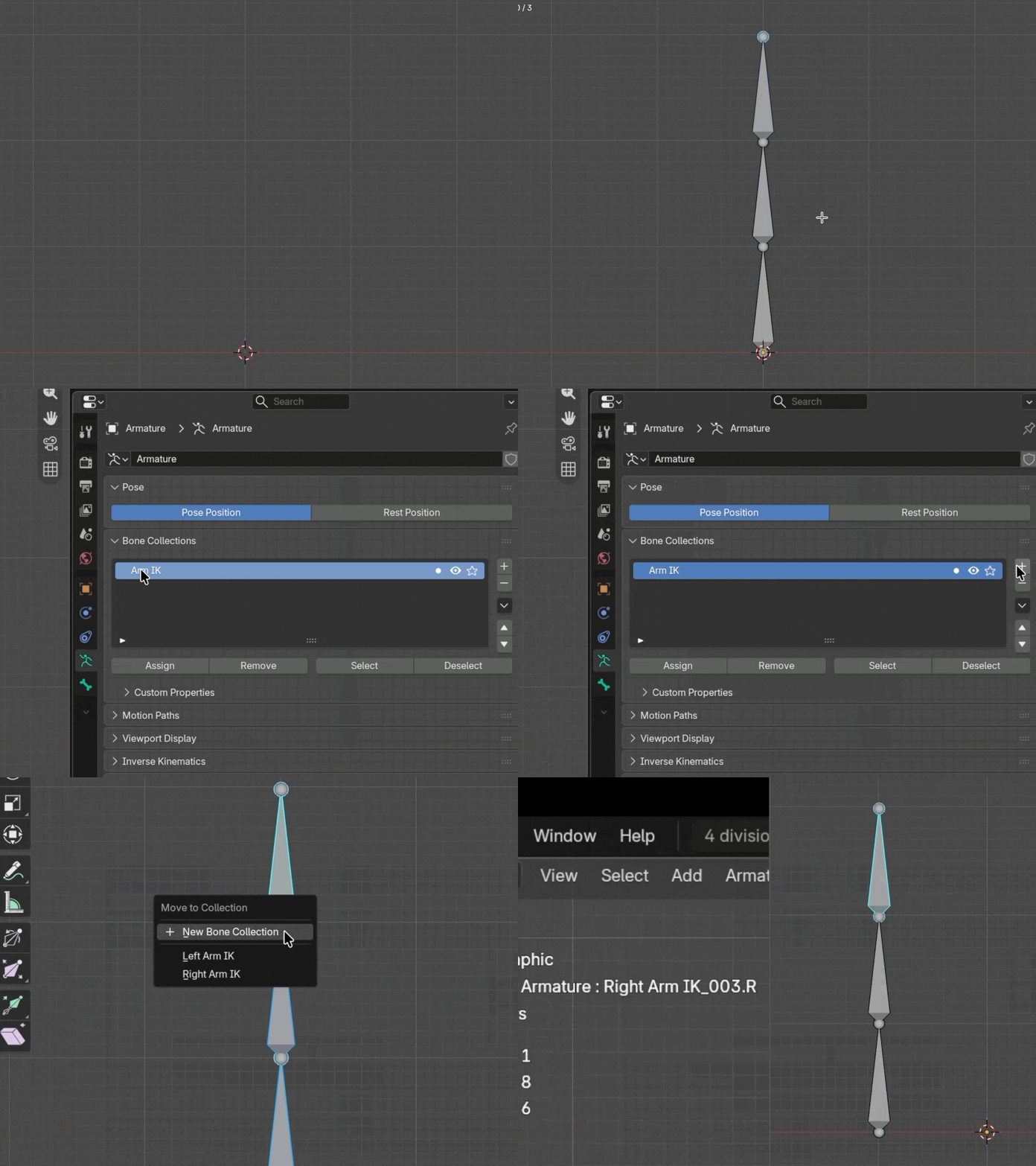
Fast renaming. Rename a whole collection in one click: Reset Names numbers the bones in chain order with the collection's name and keeps .L/.R. Bones in sub-collections take their own collection's name. Rename Bones in Sequence and Prefix give more control.
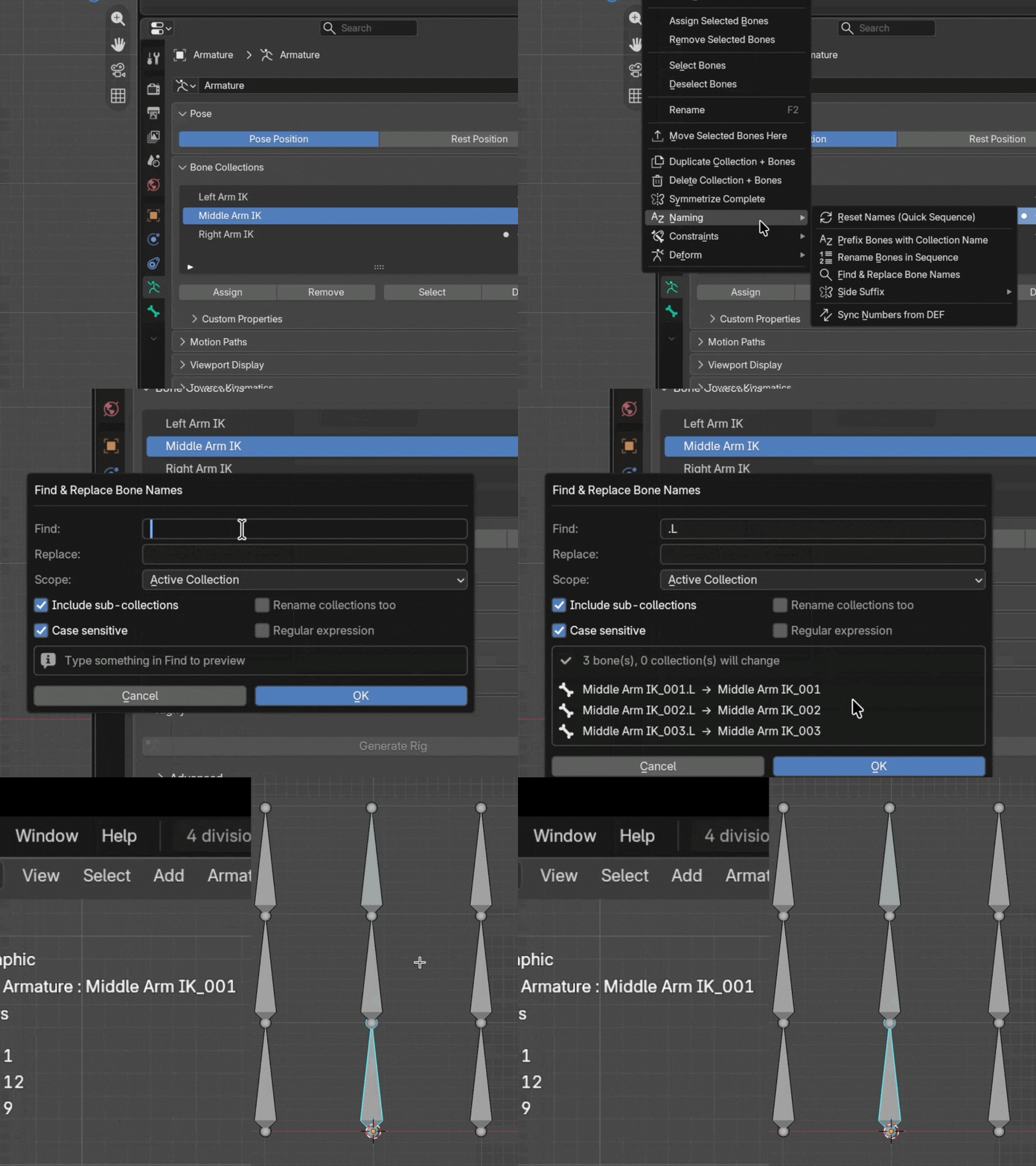
Find & Replace. Swap a word in every bone name of the collection, like Arm for Leg, without touching the rest of the rig.
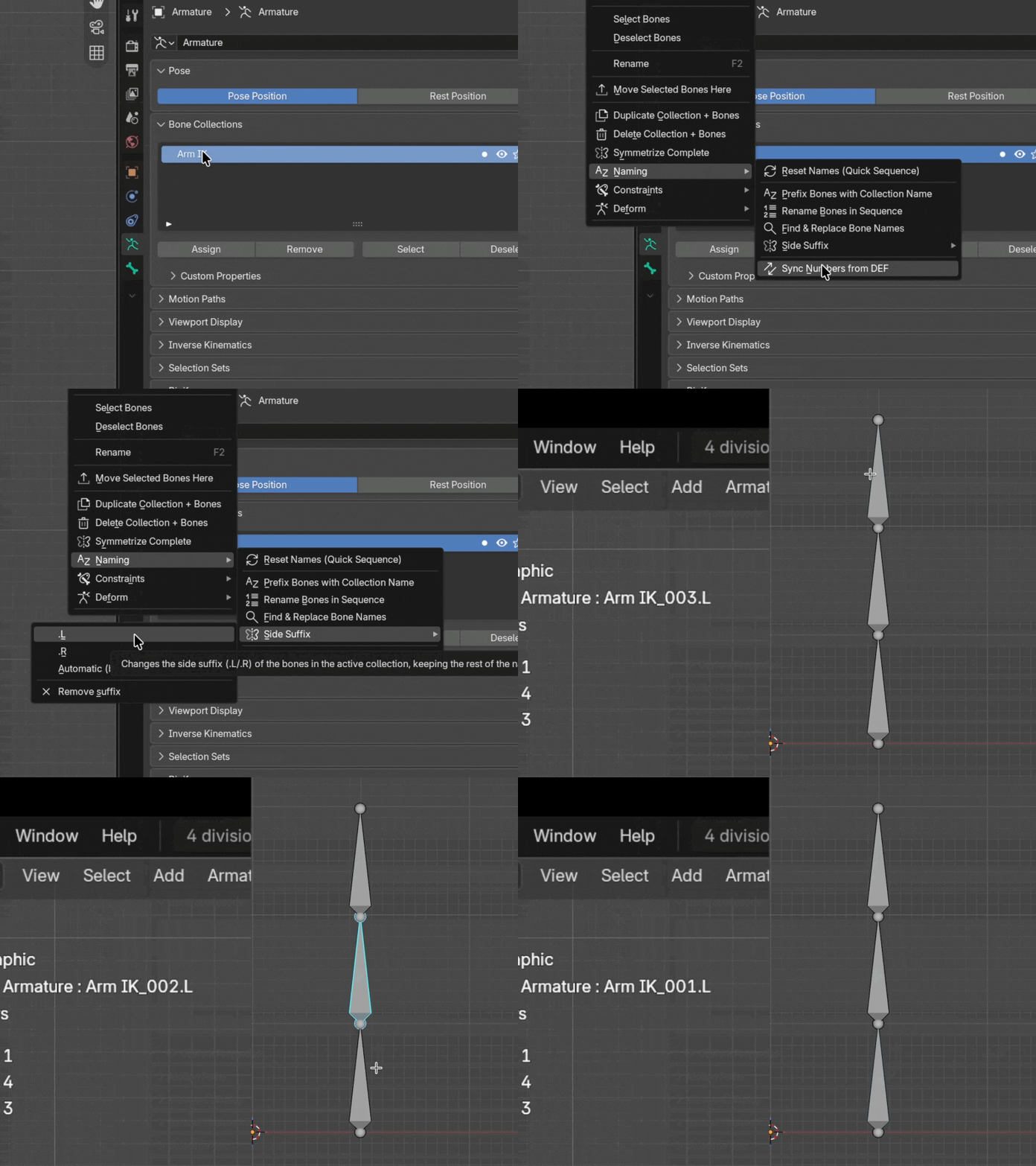
Side Suffix. Add, switch or remove .L/.R on the collection's bones, so they're ready for Symmetrize.
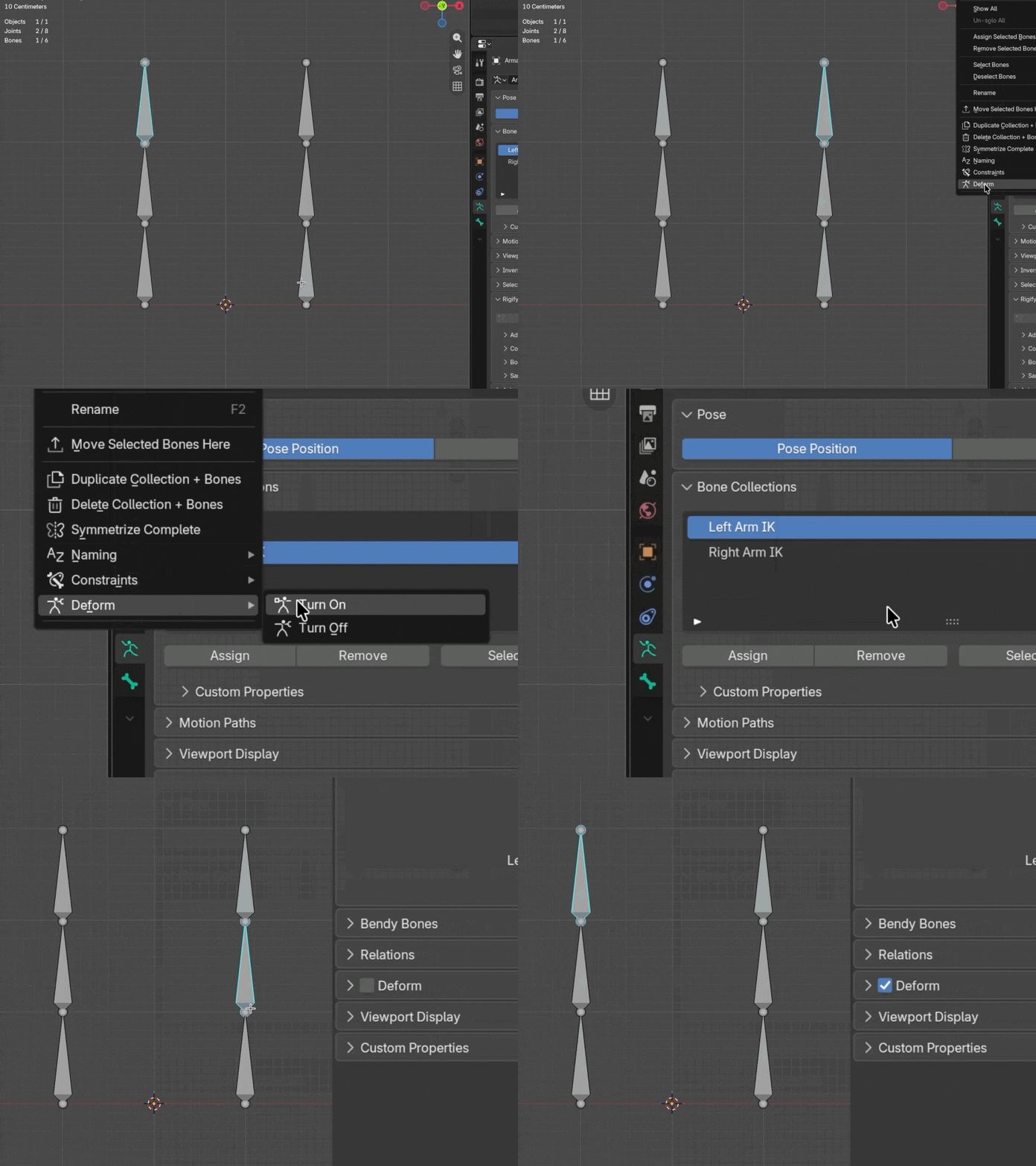
Deform. Turn deform on or off for every bone in the collection, so control and helper bones never move the mesh.
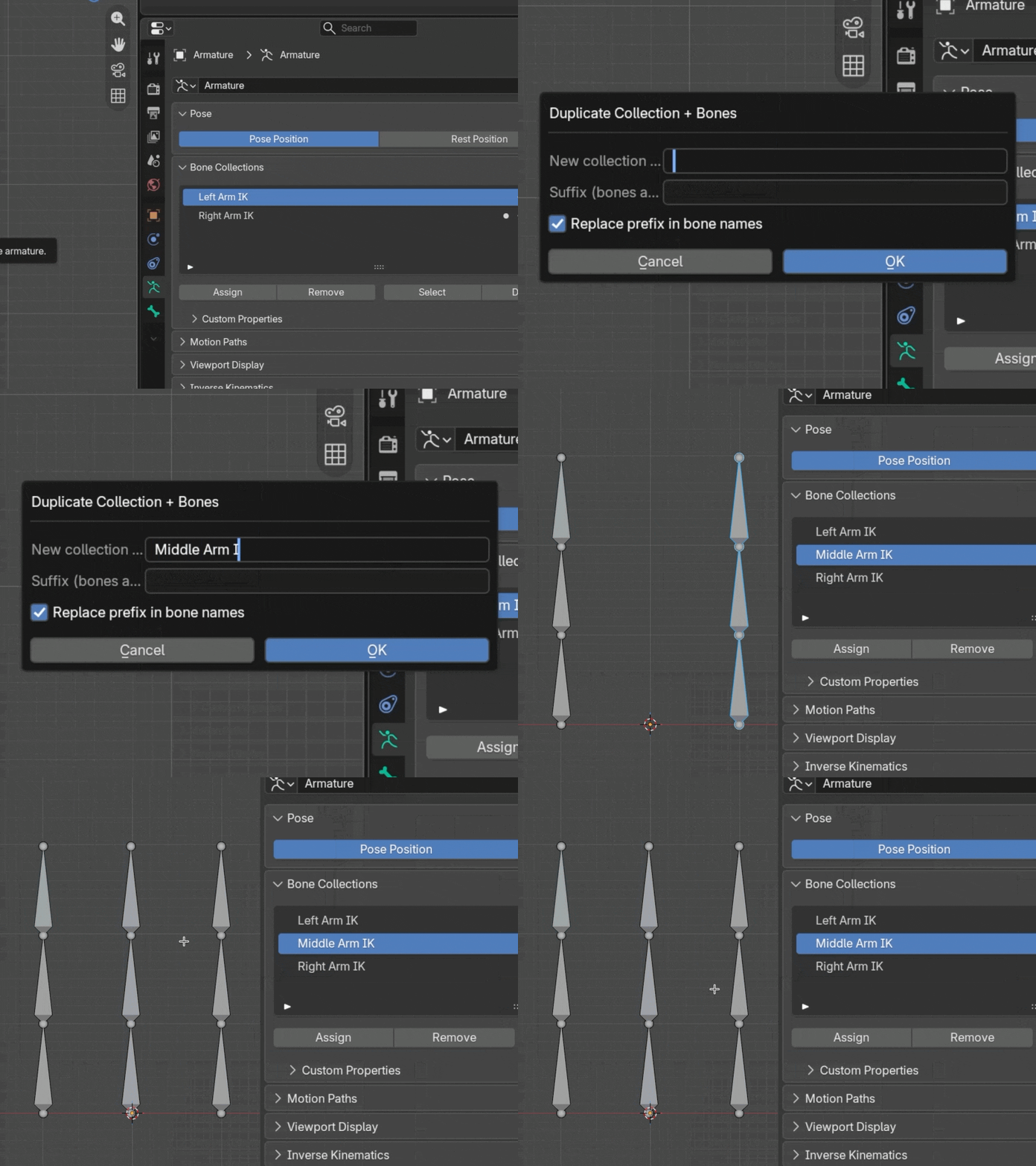
Duplicate Collection + Bones. Copies the collection with its bones and hierarchy, under a new name and suffix. I use it to build the FK and IK copies of a limb.
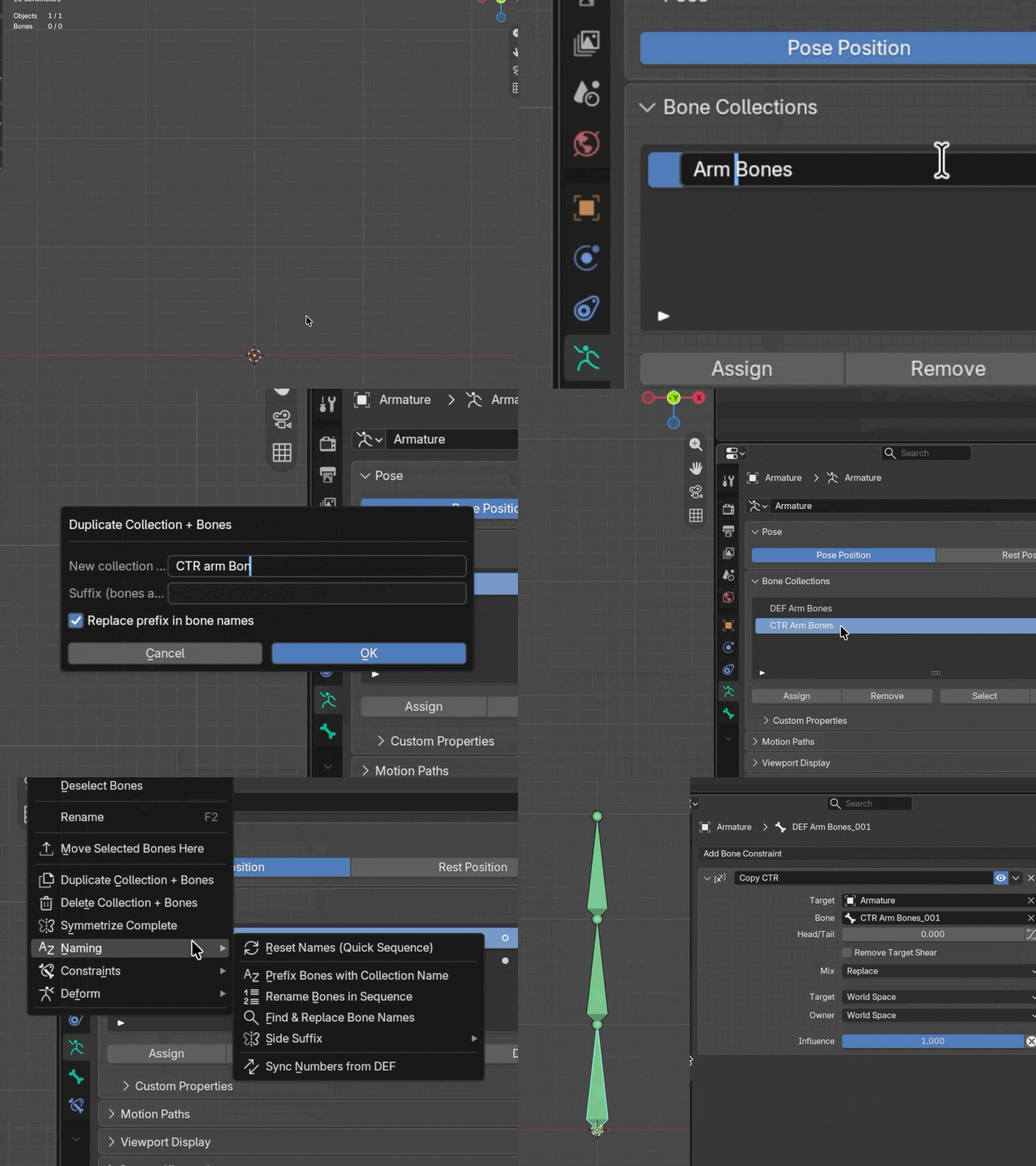
Constraints. Adds Copy Transforms from each DEF bone to its CTR bone, or to CTR and MCH for FK/IK switching. Bones are paired by position, so the small offsets that IK setups create don't break the match, and names settle the ties. If the numbering got out of order, Sync Numbers from DEF fixes it.
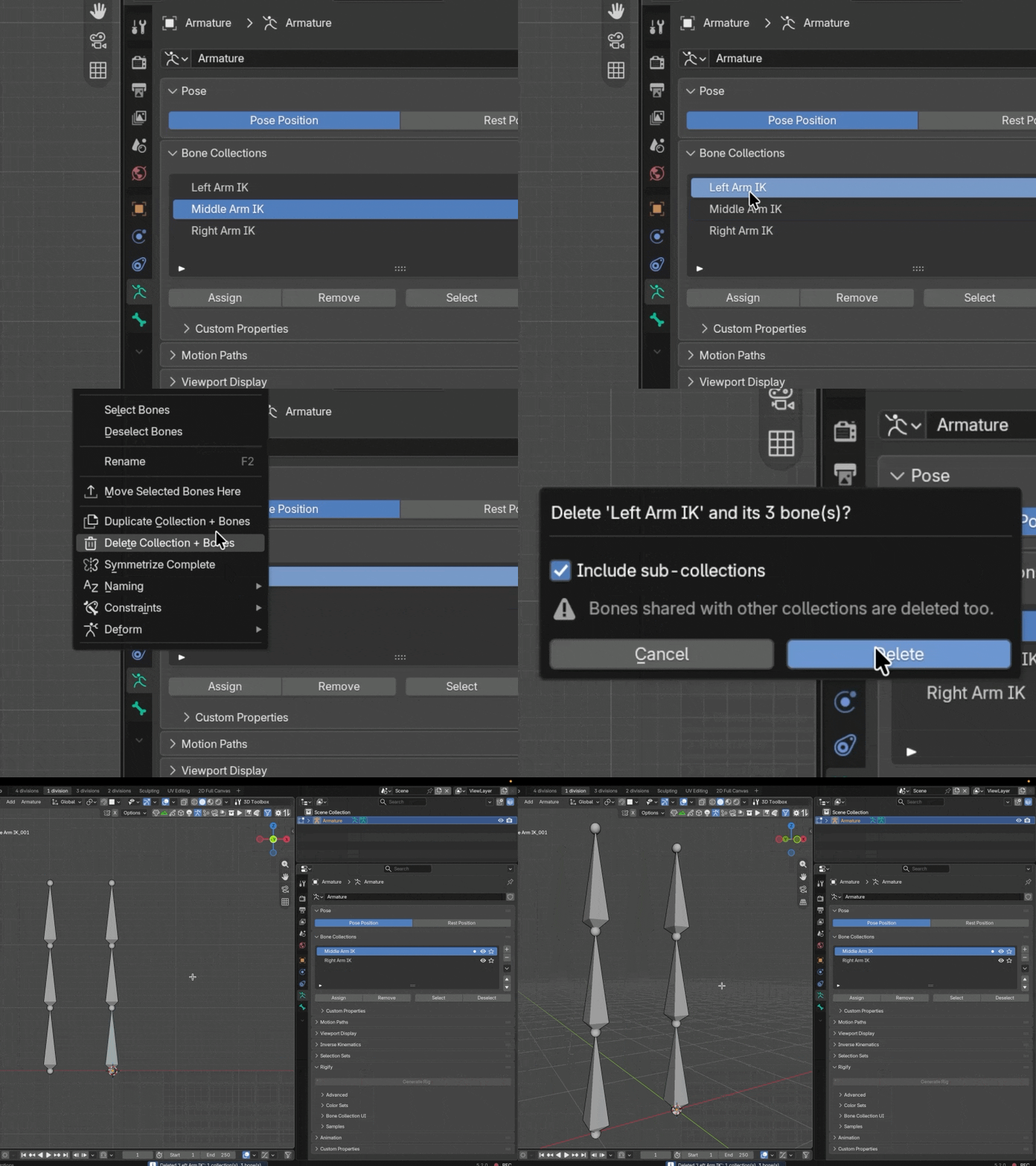
Delete Collection + Bones. Removes the collection and the bones inside it in one step, instead of selecting and deleting the bones first.
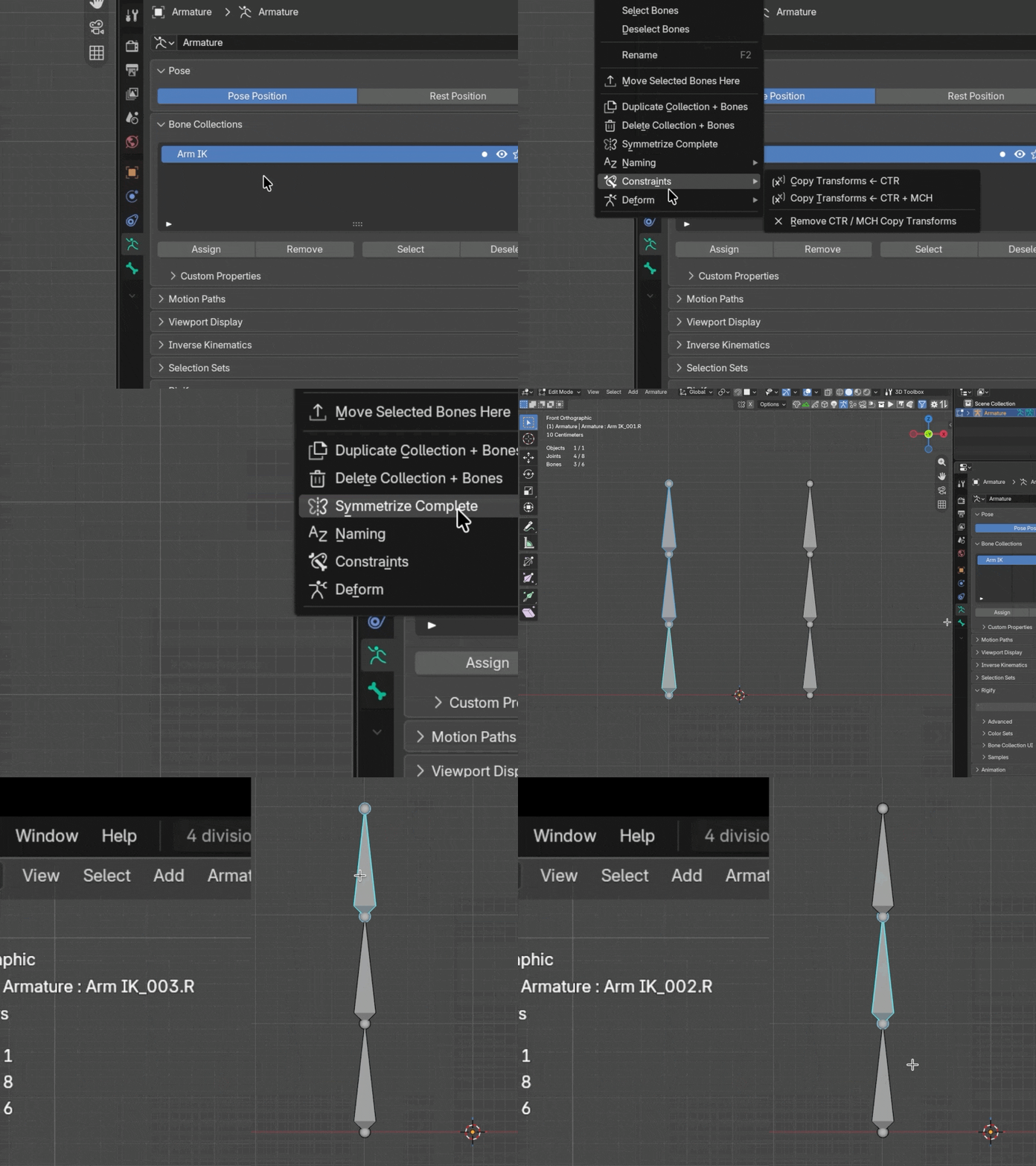
Symmetrize Complete. Works like Symmetrize from the Armature menu, but also mirrors the drivers and the bones' custom properties to the other side.
How to use
- Select your armature and open Properties > Armature (Object Data) > Bone Collections.
- Organize the bones in collections. To send bones to a collection, select them, right-click the collection and choose Move Selected Bones Here.
- Click a collection to make it active, then right-click it to see the Nakan tools. Everything acts on that collection and its sub-collections.
- To name a chain, choose Naming > Reset Names (Quick Sequence). For more control (order, start number, digits, side suffix), use Naming > Rename Bones in Sequence. Press F9 right after Reset Names to tweak it the same way.
- To build an IK/FK copy of a limb, choose Duplicate Collection + Bones, type a name and an optional suffix, and confirm.
- To wire the deform bones, right-click the DEF collection and choose Constraints > Copy Transforms ← CTR, or ← CTR + MCH. Check the list of matches, adjust the FK/IK extra words if your names use them, and confirm. To switch between CTR and MCH, drive or animate the influence of the "Copy MCH" constraint.
- To mirror the rig, give the left-side bones a side suffix (Naming > Side Suffix), put CTR, DEF and MCH inside one master collection, right-click it and choose Symmetrize Complete. Custom properties used by drivers must be created in Pose Mode: properties created in Edit Mode live on the bone data, not on the pose bone the drivers read.
- For control or helper collections, use Deform > Turn Off so their bones don't deform the mesh.
Requires Blender 4.1 or newer.